Last updated on 2025-06-25, by
Can’t Play Video? 6 Quick Solutions for “Video Codec Not Supported”
An error video codec not supported while attempting to play a video can be extremely annoying. This is a common issue generally caused because of an incompatibility between the video file and the respective codec your device is using for decoding it. A codec is software that compresses existing or new video files and decompresses files or videos. Simply put, if your device does not support the codec used to encode a video, it will not be able to play it. The good news, however, is that there are also many simple and fast fixes to get your video going again. In this article, we are going to show you six ways to do so.
OutlineCLOSE
- What Causes “Video Codec Not Supported”?
- Outdated Media Players
- Missing System Codecs
- Corrupted or Incomplete Video Files
- High-Resolution or Advanced Video Formats
- 6 Quick Solutions for “Video Codec Not Supported”
- Update Your Media Player
- Check File Integrity
- Restart and Clear Cache
- Install Missing Codec Packs (Windows)
- Convert the Video to a Supported Format
- Update Drivers, Firmware, and OS
- FAQ
- What is a video codec, and why does my device say it’s not supported?
- Can Leawo Video Converter fix a video that won’t play due to codec issues?
- Will converting a video with Leawo reduce its quality?
- What’s the safest way to install missing codecs on Windows?
- Should I use VLC or convert the video permanently?
Part 1: What Causes “Video Codec Not Supported”?
The error message “Video codec not supported” means that your device or app cannot decode the format of the video file. This usually occurs when the required codec — the software for compressing and decompressing digital video — is either missing or incompatible. Below are the most common reasons that lead to issues:
1. Outdated Media Players
Not all media players are equal. An older or default player may not support newer or less common codecs, such as HEVC (H.265), VP9, or AV1. While those codecs are gaining popularity thanks to better quality with a smaller bitrate, most older players don’t include support for them by default.
2. Missing System Codecs
Also, not every codec is included with operating systems. Some file types may require the installation of codec packs manually, especially on Windows or Android devices. Even if the media player itself is working fine, if your system is not equipped with the right decoding tools, it simply will not know how to play the video.
3. Corrupted or Incomplete Video Files
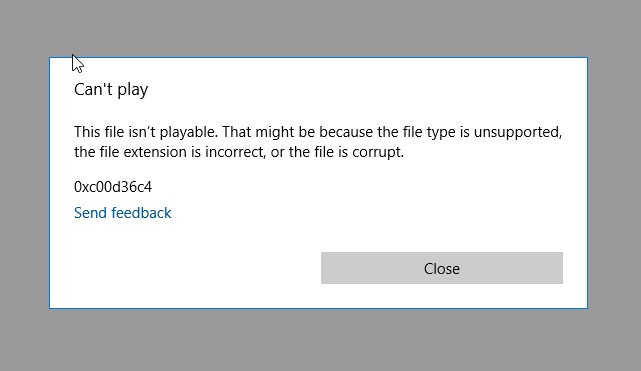
However, remember, the problem does not always lie in the codec problem, but it can also start at the video file itself. When a file is partially downloaded, corrupted during transfer, or damaged on the storage medium, the media player may misinterpret the codec information and report an error.
4. High-Resolution or Advanced Video Formats
Videos are frequently encoded in 4K, 8K, HDR, or 10-bit color depth. These formats require more computation power and tend to rely on hardware acceleration. If your device is not capable of this, OR if the media player does not support advanced rendering options, playback issues can still happen even if the right codec has already been installed.
Knowing these possible reasons can help you pinpoint the fix quickly. Now, let us explore six effective fixes in order to play your video without any headache.
Part 2: 6 Quick Solutions for “Video Codec Not Supported”
When your video refuses to play due to a codec issue, it’s usually not a very big problem. Below are six simple solutions, from the most basic to the more technical, to help you overcome the issues of video not playing.
1. Update Your Media Player
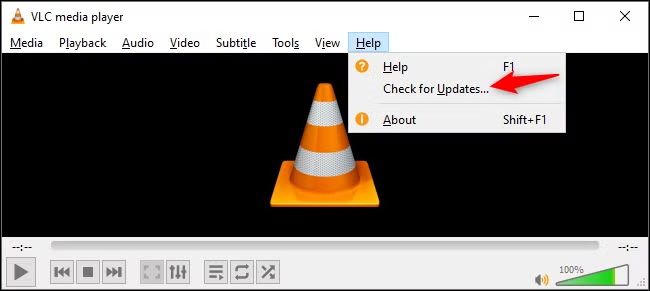
An outdated media player is one of the most frequent causes of a codec error. Older player versions can have issues playing modern video formats like HEVC (H.265), VP9, or AV1, including Windows Media Player or QuickTime.
A quick workaround is to switch to a reliable player like VLC Media Player or Leawo Free Blu-ray Player. If you are using your device’s default player (Windows Movies & TV, macOS QuickTime, etc.), make sure your system is up to date, as you may simply be in need of new codec support. By upgrading your player, you ensure your player recognizes the upcoming compression standards you are using in new videos.
2. Check File Integrity
If your video is not playing on other players too, the file may be the problem. First, open the video in various applications, try Leawo Free Blu-ray Player, VLC or any online players, if necessary. Red flags could be the video hanging at a specific time, the log playing without video, or the file refusing to open at all. To solve this issue, re-download the file and make sure that the extension (e.g., mp4, mkv) matches the file format. Renaming the video itself to eliminate special characters or a lengthy file name.
3. Restart and Clear Cache
Some temporary system or app glitches can block videos from playing, mainly on mobile devices, or post app crashes. Often, a restart can resolve memory or cache problems behind the scenes.
On Android/iOS, go to the app settings and clear cache and data for the media player you’re using.
On Windows, reset the default Video Playback settings by navigating to:
Settings > Apps > Video Playback > Reset Defaults.
This would reset the video handling configuration of the system and remove potential misconfigurations without deleting your files.
4. Install Missing Codec Packs (Windows)
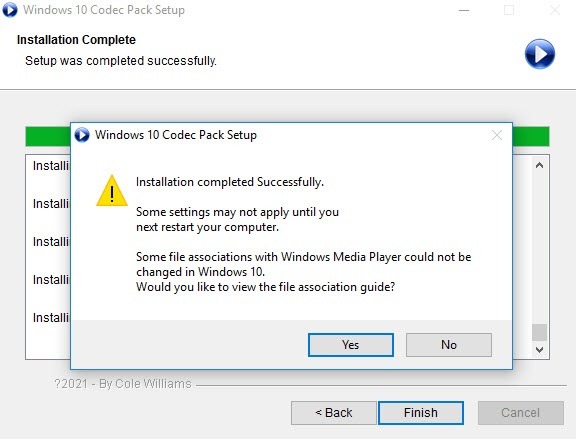
On Windows PCs, missing codecs are a frequent source of the problem. Before knowing the codec to use, first inspect the video file — either use MediaInfo or open up in VLC and navigate to:
Tools > Codec Information.
Once you identify the missing codec, download a reputable codec pack:
K-Lite Codec Pack: One of the most comprehensive and widely supported packs.
CCCP (Combined Community Codec Pack): Good for anime and MKV-heavy formats.
Download the codec pack from its official websites to prevent malware and bloatware. Do not accept pop-up “codec updates” from people you do not know; these are usually scams. Restart your media player after installing and see if the file opens again.
5. Convert the Video to a Supported Format
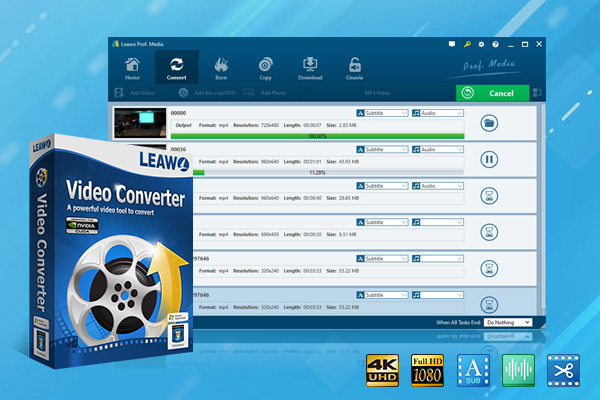
Your best bet is converting the video to a more universally supported format if none of the above methods work, or if you want a long-term fix. Not only does this avoid the codec problem, but it also guarantees the video can be played on almost any device without the need for extra software or plugins. Leawo Video Converter is one of the best tools that can get this job done.
-
– Convert video/audio between 180+ formats.
– Support iPhone, iPad and all portable devices video and audio convertsion.
– Convert video/audio with 100% quality reserved in 6x higher speed.
– Turn photos (folders) into photo slideshows video.
– Convert 2D to 3D video via editting 3D depth range and 6 different 3D modes.
Leawo Video Converter is a powerful and comprehensive video converter supporting 180+ video and audio formats, like MP4, MKV, AVI, FLV, MP3, AAC, etc. It supports simple conversions to HD and 4K video encoding at 6X speed with 1:1 lossless quality. This way, you can watch it on any device, smartphone, PC, TV or game console, which is an important feature if you plan to convert a smartphone clip or a film with a high bitrate. Here is how to Convert Videos Using Leawo
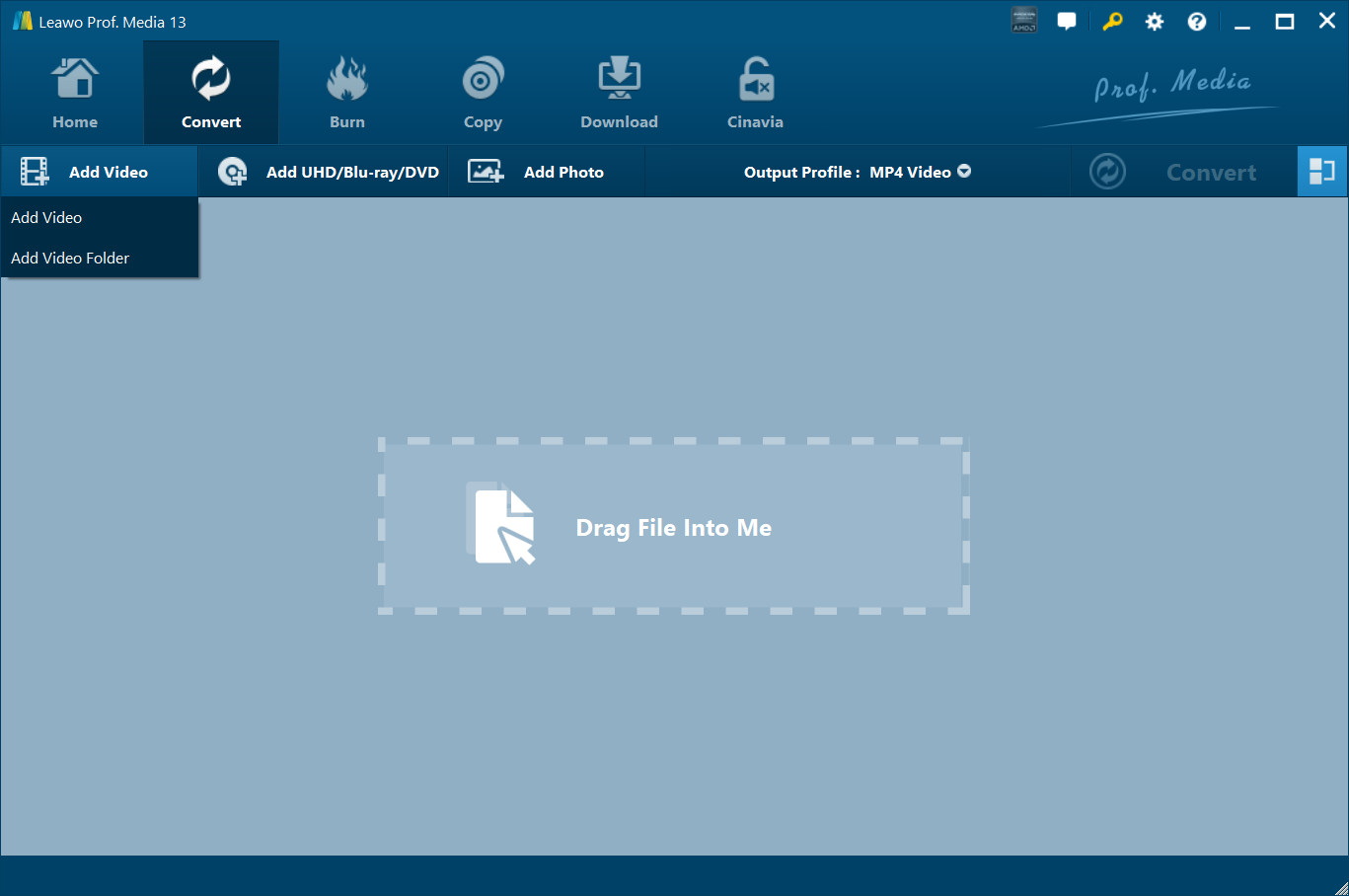
Step 1: Import Your Files
Launch Leawo Video Converter. To add a single file or a folder, click Add Video on the top bar. Or just drag-and-drop your videos right into the interface.
Optional: get all the clips into one, or get hold of simple editing tools and subtitles before the conversion operation.
Step 2: Choose an Output Format
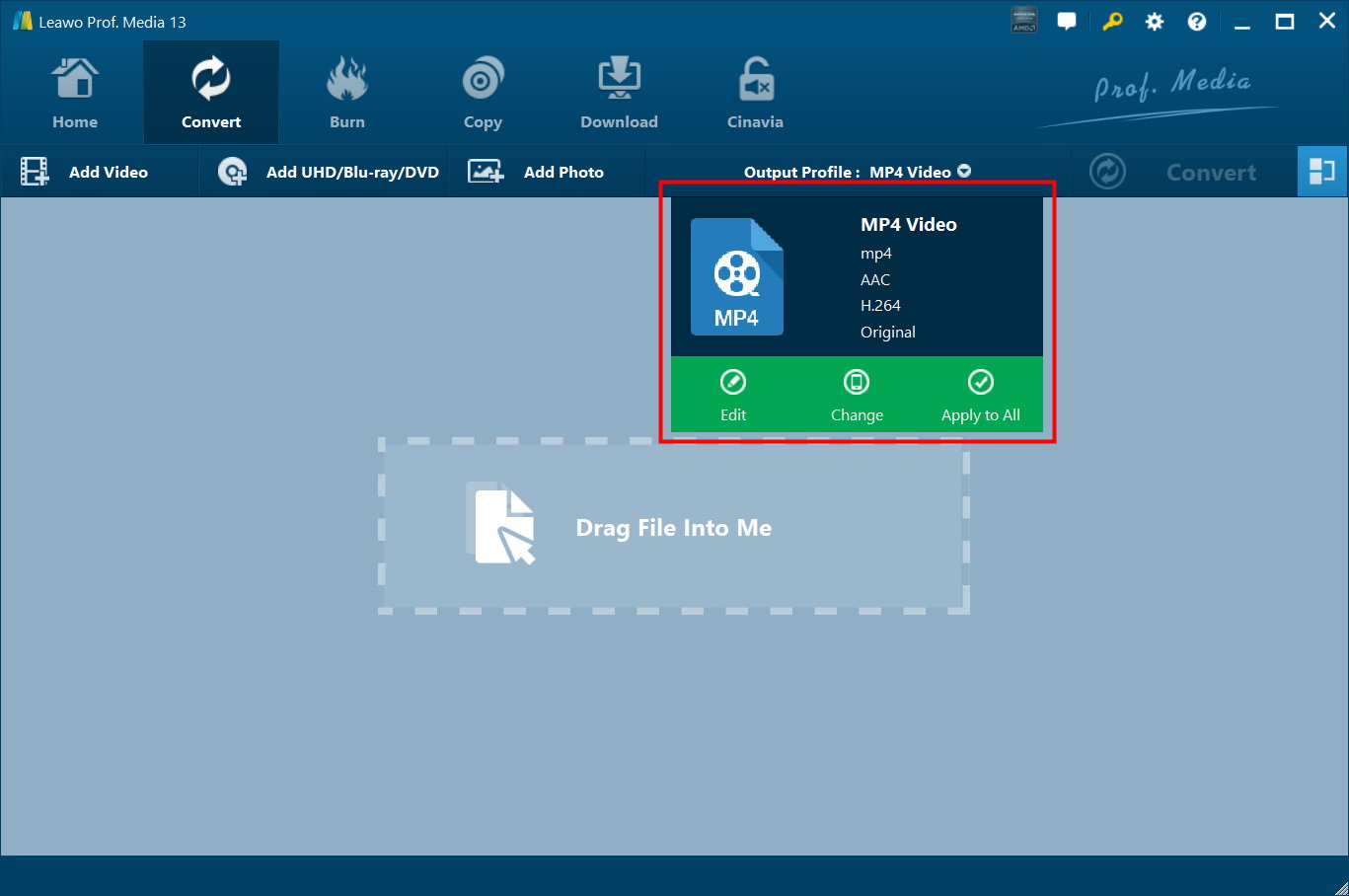
Hit the format label (which defaults to “MP4 Video”) next to the green “Convert” button, and then click “Change. Click Format or Device to find the optimum format in the Profile panel. Choose MP4 (H.264) for the widest compatibility.
Step 3: Adjust Video & Audio Settings (Optional)
Want more quality control? Click back onto the same format label and select the “Edit” button. You can adjust settings such as resolution, bitrate, frames per second and audio channels under your target device or size limitations.
Step 4: Set Output Directory
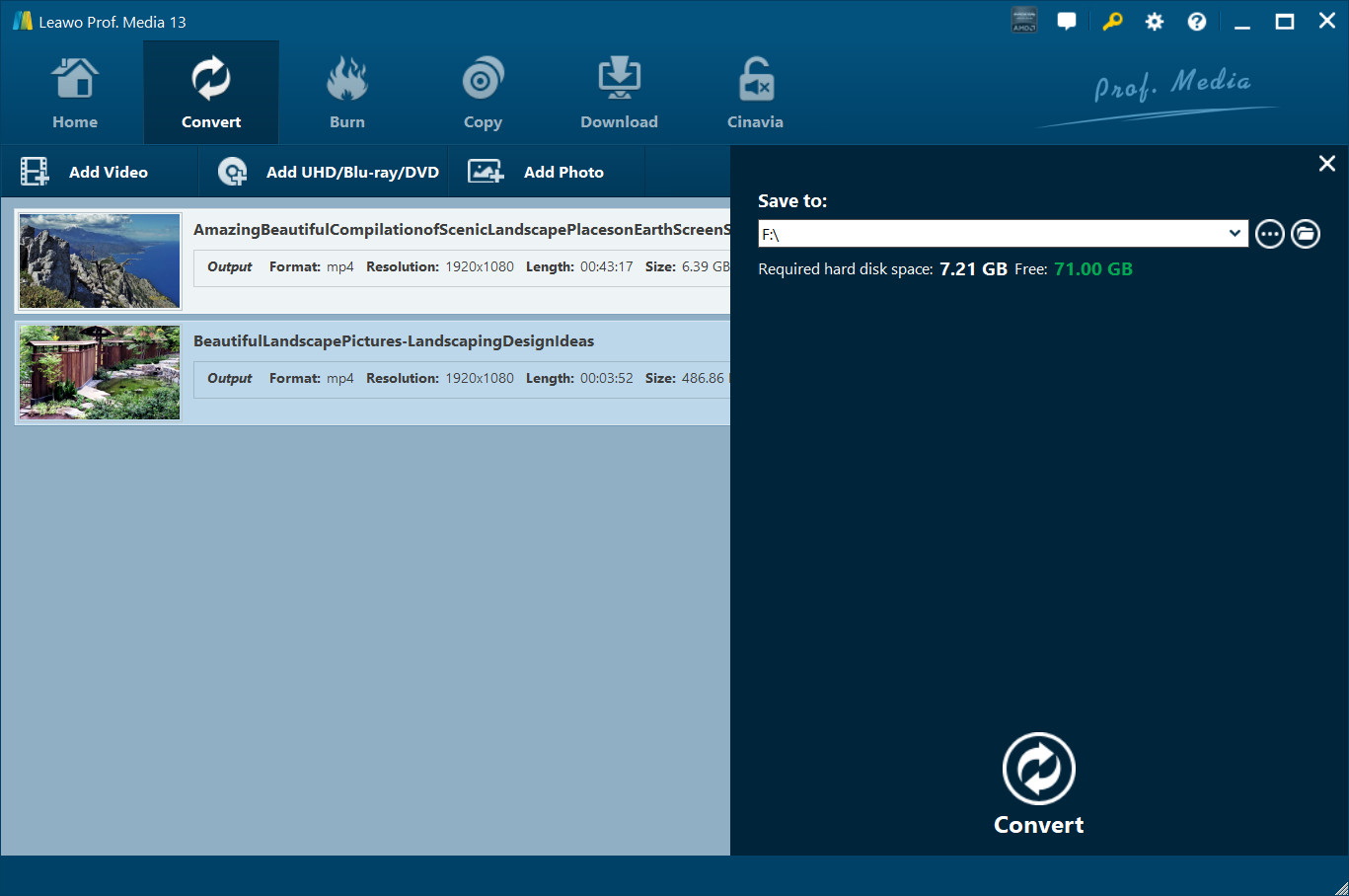
Click the green “Convert” button to open a sidebar. Choose where to save the converted file under “Save to”.
Step 5: Start the Conversion
Now click on “Convert” again to start processing. Leawo has batch conversion support, thus you can convert multiple files at once. Your new video will be ready in the output folder you selected when it is done.
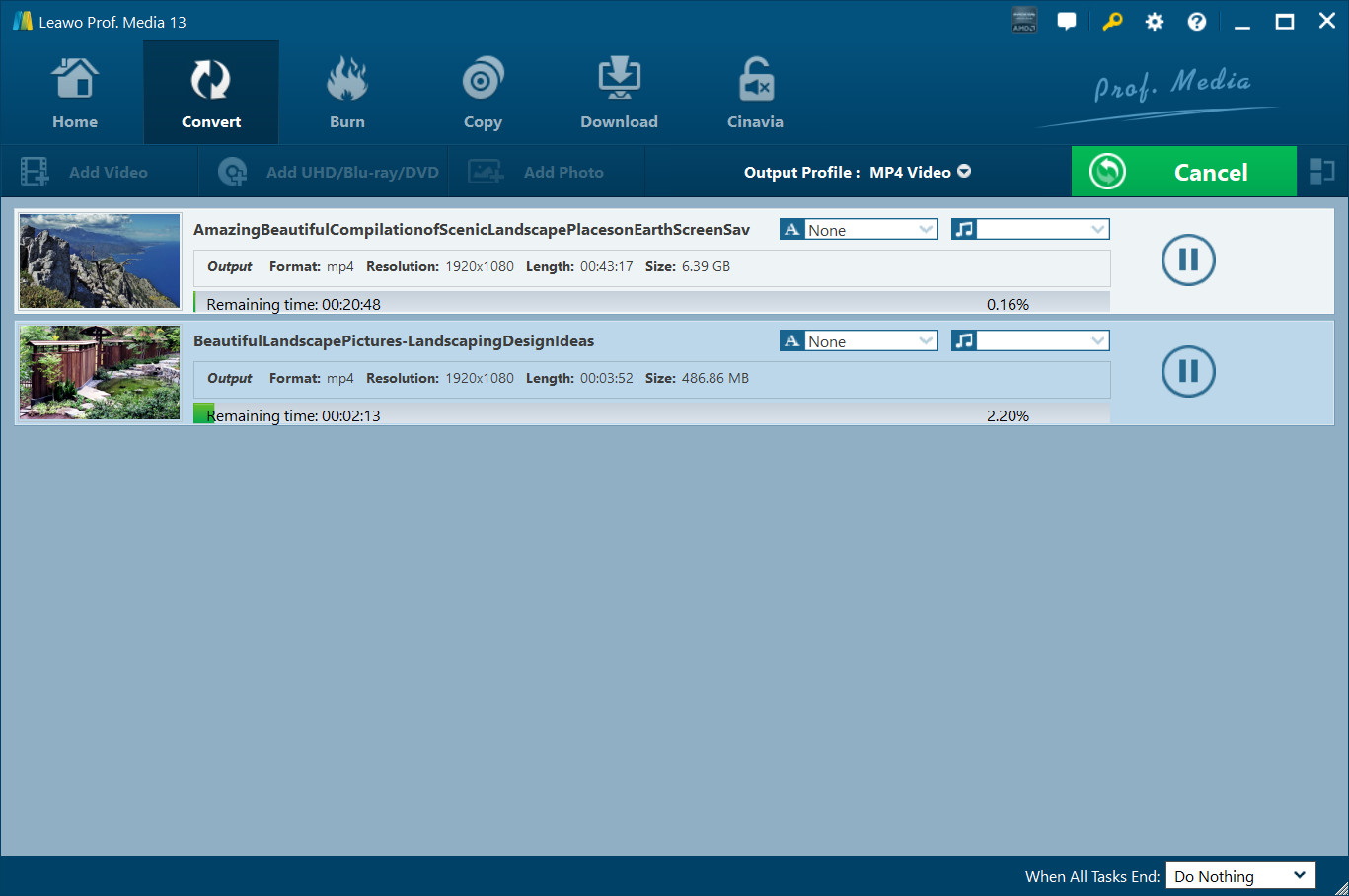
Once converted, the new file should play on virtually any device, no additional codecs required.
6. Update Drivers, Firmware, and OS
Sometimes the issue lies deeper in your system’s hardware or software support. Many modern codecs, such as AV1 or 10-bit HEVC, typically need hardware decoding through a GPU. Even if the application is capable of decoding, your device may not be able to without an updated graphics driver.
GPU Drivers: Update your graphics drivers using the manufacturer’s tools:
- NVIDIA: Use GeForce Experience.
- AMD: Use Radeon Software or download from AMD’s support page.
Smart TVs: Check the manufacturer’s website or TV settings for firmware updates.
OS Updates:
- On Windows: Go to Settings > Update & Security > Windows Update.
- On macOS: Use System Settings > Software Update.
Keeping everything current ensures the best possible video support and may unlock new codecs your device previously couldn’t handle.
Part 3: FAQ
Q1. What is a video codec, and why does my device say it’s not supported?
A video codec is a software that encodes (compresses) and decodes (decompresses) digital video files. The video codec not supported error you get on your device is nothing but an indication that the device has no software to decode the format in which we stored the video. Usually, this happens to you for the new formats, for example venues like HEVC (H.265) or AV1, mainly because you have not updated your media player or have not updated your system for a long time.
Q2. Can Leawo Video Converter fix a video that won’t play due to codec issues?
Yes, absolutely. Leawo Video Converter handles over 180 formats, which include even those less established. Encoding your video to a less troublesome format like MP4 (H.264, basically ensuring the video plays most everywhere without needing to install codecs.
Q3. Will converting a video with Leawo reduce its quality?
Not necessarily. Leawo establishes a 1:1 lossless conversion, which is able to keep the same quality as the original video file during the conversion process. Also, if you want to keep the quality or, alternatively, reduce the size of the file, it offers precise controls over resolution, bitrate, and more.
Q4. What’s the safest way to install missing codecs on Windows?
Always download codec packs from reputable sources (such as K-Lite Codec Pack (codec guide. com) or CCCP. Use MediaInfo or VLC’s built-in codec inspector before installing the codec.
Q5. Should I use VLC or convert the video permanently?
Both options are valid. If you do not want to convert the audio file and just want to play it once, then VLC Media Player is very good for playing most of the file voicing most of the files. More: If you want to upload it to the web, store it for archival reasons, or play it on different platforms or devices, you should convert it to a widely adopted format with something like Leawo Video Converter.
-
Complete Guide: Types of Blu-ray Discs and Their UsesCassie J./2026-03-30
-

How to Play Region B Blu-ray in Any Region?Cassie J./2026-02-28
-
How to Play AVI Files on Mac and WindowsCassie J./2026-01-30
-

The Complete Guide to Play Blu-ray on PS5Cassie J./2025-12-23
-
How to Increase the Resolution of Image?Cassie J./2025-11-26
-
How to View Twitter Without an Account?Cassie J./2025-10-31
-
How to Convert AVCHD to MP4 on Mac, Windows, Android, and iPhone?Cassie J./2025-09-28
-

What is Region 1 DVD? How to Play Region 1 DVD in Other Regions?Cassie J./2025-08-21
-
How to Burn YouTube Video to DVD for Offline Archive?Cassie J./2025-07-11
-
Can’t Play Video? 6 Quick Solutions for “Video Codec Not Supported”Cassie J./2025-06-25