Last updated on 2025-12-23, by
The Complete Guide to Play Blu-ray on PS5
Summary:
- The PS5 consoles that have the built-in disc drive can be used as Blu-ray movie players, and PS5 Standard Edition has a 4k Blu-ray drive. This guide explains the type of discs PS5 can play and alternative solutions.
The PS5 is not only a gaming console, but the Standard Edition of the PS5 can be used as a high-quality Blu-ray player. It has an in-built 4K Ultra HD Blu-ray drive that allows its users to view movie discs out of the box. On the other hand, the PS5 Digital Edition has no disc drive, so it cannot play physical Blu-ray or DVDs. In this article, we will discuss which PS5 models support Blu-ray, how to play a Blu-ray Disc on PS5, and some easy fixes to overcome common issues.
Quick AccessCLOSE
Which PS5 Models Can Play Blu-ray Discs?
The PS5 model you have is all that matters when it comes to playing Blu-ray discs. Let’s see which models have the drive:
Supported models
- Original PS5 (Standard): Yes
- PS5 Slim (Disc Version): Yes
- PS5 Pro (Disc Version):Yes
- PS5 Digital Edition: No built-in drive
Only the models with a built-in disc drive can support Blu-ray discs. These consoles can natively play Ultra HD (4K) Blu-ray movies, standard Blu-ray discs, DVDs, and physical game discs. On the other hand, Digital Edition lacks a disc drive and thus, does not support physical Blu-ray or DVDs. The newer Digital Edition models do not have optional external drives. Activation is not necessary, and once the initial setup is done, a disc is all that is needed. Therefore, if you need Blu-ray movies or physical games, then go with the Standard Edition.
What Types of Blu-ray Discs Can PS5 Play?
PS5 standard edition supports different Blu-ray formats, including:
Supported formats:
- Ultra HD Blu-ray (4K Blu-ray): PS5 can play 4K UHD Blu-ray movie discs. Moreover, all Ultra HD Blu-ray discs are region-free, meaning any 4K disc will work with any PS5 Standard.
- Standard Blu-ray Disc: 1080p Blu-ray movie discs that are normal can be played without any issues.
- BD-ROM: BD-ROM and other commercial pre-recorded Blu-ray discs can be played.
- BD-R/BD-RE: PS5 standard edition supports recordable Blu-ray discs, including BD-R and BD-RE in Blu- ray AV (BDMV) and Blu-ray Audio (BDAV).
Besides video discs, any PS5 or PS4 game disc can also be played on the PS5 since these are Blu-ray-based. The console also handles the game discs and movie discs in the same manner, displaying an icon of a game or starting the media player, respectively, with the type of disc being used. The PS5 Standard Edition is also capable of playing DVD video discs, such as the DVD-ROM, DVD-R/RW (video and VR mode), and DVD+R/RW. The PS5 does not support some formats listed below:
- Audio CDs cannot be played.
- Early revision rewritable Blu-ray discs (BD-RE version 1.0) are not compatible.
- High-capacity Blu-ray XL discs are not supported.
- Unfinalized (unclosed) DVDs will not play.
PS5 Standard supports all types of Blu-rays and DVDs that are used in movies or games. However, it does not support the older formats, like CDs and exotic discs, like BD-XL or mini-discs. Plus, it is entirely compatible with hybrid Blu-ray/DVDs, AVCHD (camera Blu-ray), and all discs that are compatible with the region code of the console.
How to Play a Blu-ray Disc on PS5?
The PS5 is fast and easy to play a Blu-ray disc. Once you have a disc-compatible console, the system will automatically recognize your movie or game, and the relevant player will be launched. Here is how to do it:
Step 1: Turn on the PS5.
Step 2: insert the Blu-ray movie disc in the disk drive. The disc label should be on the left side in case the console is located at the vertical position.
Step 3: Once the disc has been recognized, a Disc Player icon will be displayed on the home screen. Select it to begin playback.
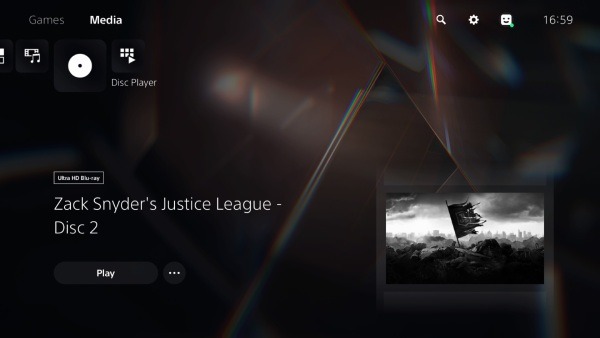
Step 4: The PS5 controller can also be used to play, pause, fast-forward, rewind, or stop the movie.
Step 5: After watching, eject the disc using the controller or the eject button on the console.
But keep in mind that DVDs are region-locked, and standard Blu-ray discs may also have region restrictions. Only 4K Ultra HD Blu-ray discs are region-free.
PS5 can also sustain 4K resolution, HDR video, and surround audio of high-quality when it is connected with compatible TVs and audio systems. The right HDMI input and settings will ensure that you receive the best display and sound quality during playback.
Alternative Method: Watch Digital Blu-ray Movies on PS5
If you have a Blu-ray disc that is not functioning or want your movies in a digital format, then you can convert the Blu-ray movies into video files and play them on your PS5 either through USB or network streaming. That’s where Leawo Blu-ray Ripper comes in. With Leawo Blu-ray Ripper, you can easily decrypt and convert Blu-ray discs into formats compatible with the PS5, such as MP4 or MKV. This way, you create a digital copy of your movie that can be played anytime on your PS5 without needing the physical disc. Here’s how to do it:

-
Comprehensive Blu-ray ripping and converting software to decrypt, rip and convert Blu-ray/DVD disc, folder and ISO image file.
- Remove multiple Blu-ray/DVD disc protections and region restrictions.
- Convert Blu-ray/DVD to video/audio in 180+ different formats.
Step 1: Download Leawo Blu-ray Ripper and install it on your Windows or Mac computer.
Step 2: Insert your Blu-ray disc into your computer’s Blu-ray drive. Open the software, go to the Convert module, and click Add Blu-ray to load your movie.
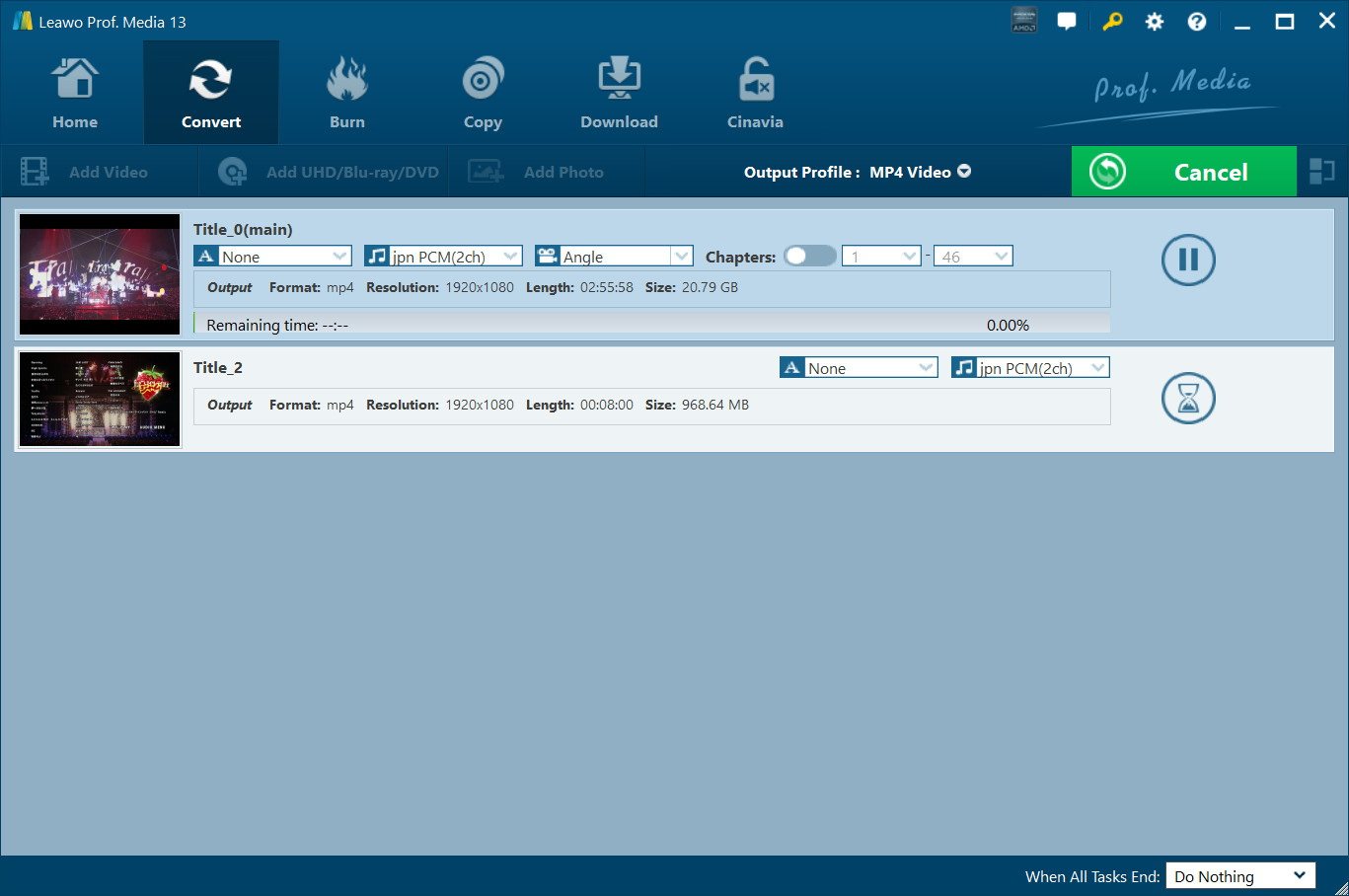
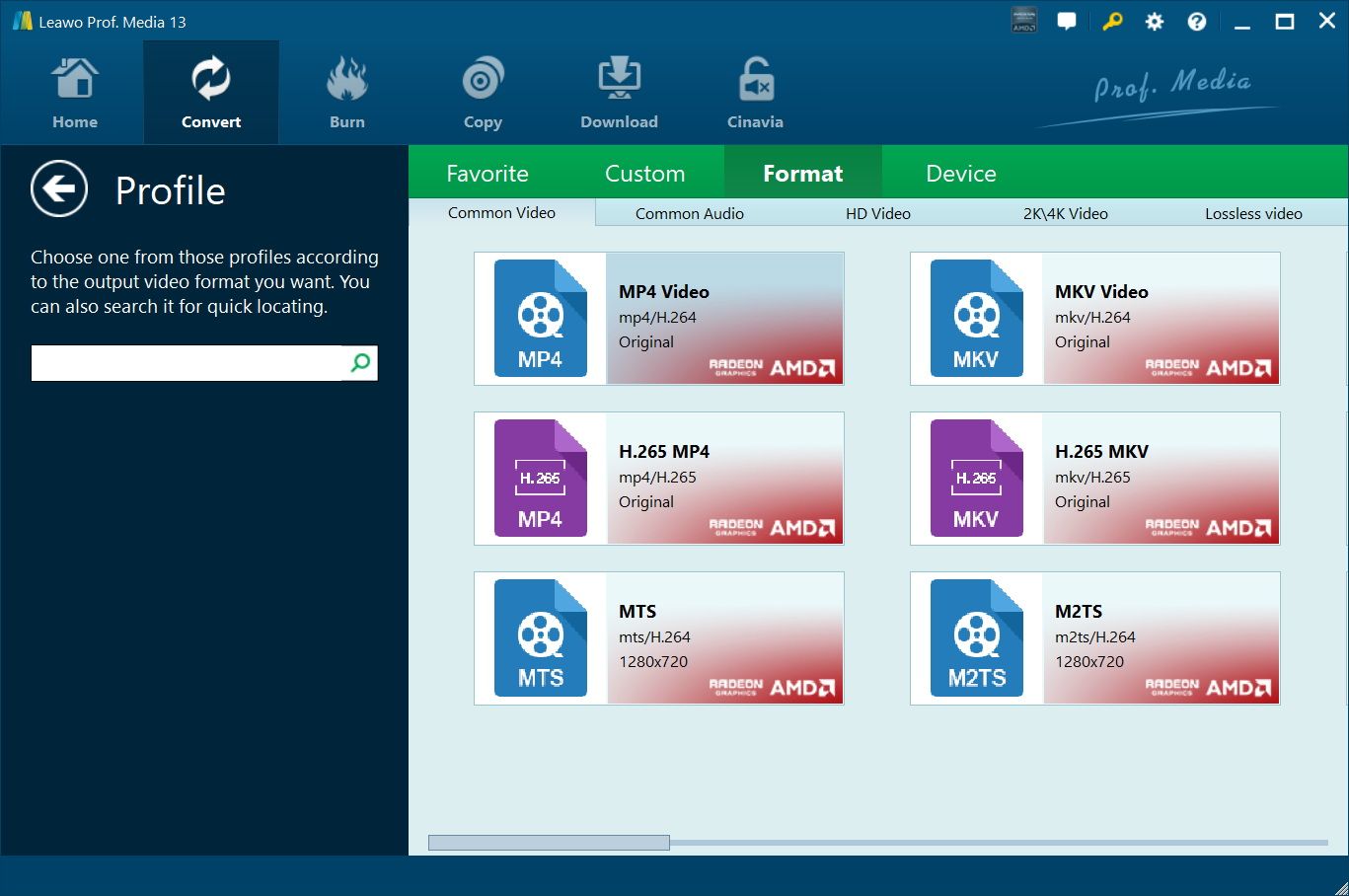
Step 3: Select a video format compatible with PS5, such as MP4 (H.264) or MKV. You can choose to rip the Full Movie or just the Main Movie.
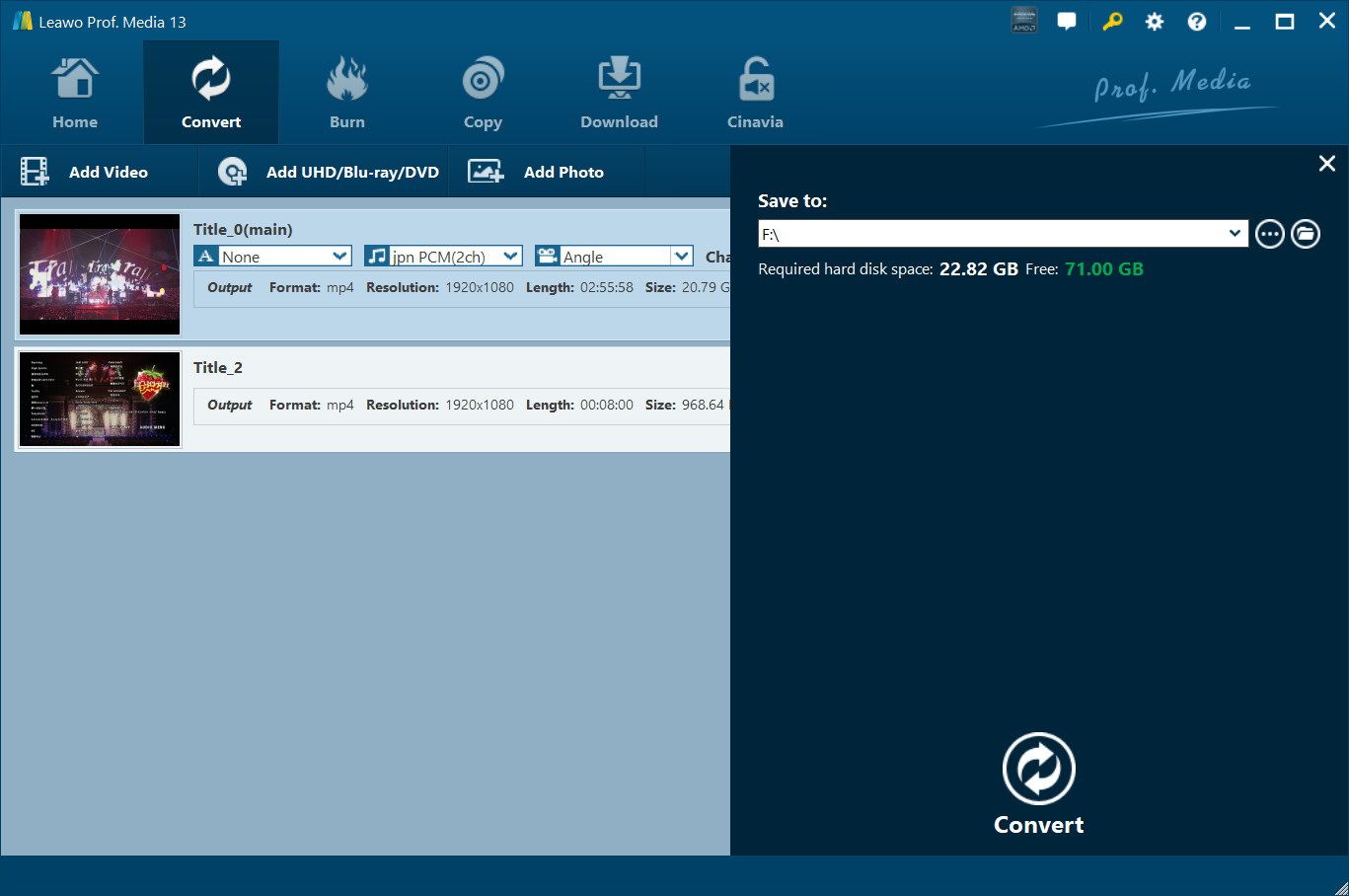
Step 4: Click Convert, choose a folder in which the file is to be saved, and begin the process. The application can use GPU acceleration to accelerate the programs. Depending on the size of the file conversion can take a few minutes.
Step 5: After conversion, copy the video file to a USB flash drive formatted as exFAT or FAT32, or stream it via your network. On your PS5, open Media Gallery or Media Player, select the file, and start watching.
This method bypasses region locks, disc errors, and physical damage while maintaining high quality. Only rip discs you legally own.
Common PS5 Blu-ray Problems and Fixes
Even though the PS5 plays Blu-ray discs most of the time, some issues can still arise. The most common issues that you can encounter include: PS5 not reading Blu-ray Discs, movies that freeze or skip, or video and audio settings that do not work properly. Here are the most common PS5 Blu-ray problems and the Fixes you can try to troubleshoot the issue.
1. PS5 Not Reading Blu-ray Discs
First of all, make sure that the disc is properly aligned and clean. Minor scratches and fingerprints may cause the disc not to be read. You can use another disc to check whether the problem is with the console. If that does not work then rebuild the database using Safe Mode and update the PS5 system software to the latest version. If the error still continues, then the problem is most likely with the disc.
2. Playback Freezes or Skips
If playback is not smooth, dirty, or scratched discs can be the culprit. Therefore, make sure that the disc is clean and in good condition. Restarting PS5, updating system software, and disabling background downloads are some of the fixes that you can try. When playing ripped files, extremely high bitrates may cause stuttering. If that does not work, then you can fix the issue by adjusting the video output settings, such as 4K or HDR.
3. HDR or Audio Not Working Properly
Wrong HDMI connection or incompatible settings may also be the reason for HDR or audio problems. To begin with, make sure that you have an authentic HDMI 2.1 cable that is connected directly from the PS5 to your TV. The HDR feature on both the PS5 and TV should be enabled.
As to audio problems, it is recommended to check the PS5 audio out options, ensure the volume is not turned off, and use PCM and Bitstream format options. There are cases when a broken HDMI cable or an incompatible receiver is the cause of inconvenience. You can also update your system software and get rid of some bugs associated with HDMI or audio.
Conclusion
The PS5 Standard Edition is an excellent Blu-ray player because it can play Ultra HD 4K, normal Blu-ray, and DVDs, which have high-definition images and surround sound. The Digital Edition lacks a disc drive and therefore does not have the ability to play physical Blu-ray or DVDs. Thus, a PS5 Standard Edition is needed to play physical media. However, if you are more convenient with a digital view, you can convert Blu-ray discs to MP4 or MKV files through a dedicated tool like Leawo Blu-ray Ripper. This will enable you to stream movies either through USB or network streaming, turning your PS5 into a convenient media center.
-
Complete Guide: Types of Blu-ray Discs and Their UsesCassie J./2026-03-30
-
How to Play Region B Blu-ray in Any Region?Cassie J./2026-02-28
-
How to Play AVI Files on Mac and WindowsCassie J./2026-01-30
-
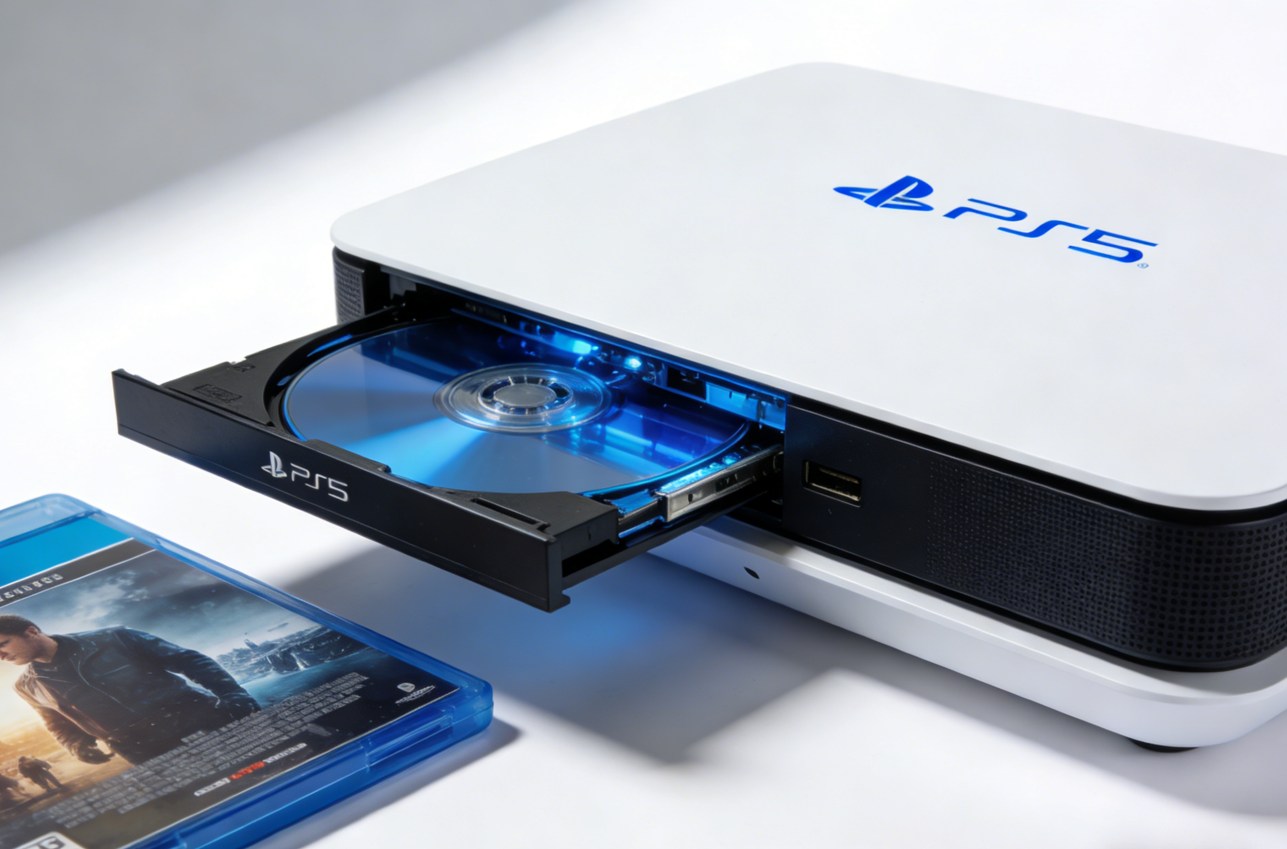
The Complete Guide to Play Blu-ray on PS5Cassie J./2025-12-23
-
How to Increase the Resolution of Image?Cassie J./2025-11-26
-
How to View Twitter Without an Account?Cassie J./2025-10-31
-
How to Convert AVCHD to MP4 on Mac, Windows, Android, and iPhone?Cassie J./2025-09-28
-

What is Region 1 DVD? How to Play Region 1 DVD in Other Regions?Cassie J./2025-08-21
-
How to Burn YouTube Video to DVD for Offline Archive?Cassie J./2025-07-11
-

Can’t Play Video? 6 Quick Solutions for “Video Codec Not Supported”Cassie J./2025-06-25