Last updated on 2025-11-26, by
How to Increase the Resolution of Image?
Summary:
- Here we cover four types of tools, including Photoshop, AI software, phone apps, and free tools, to help you increase an image’s resolution the right way, along with some simple tips to keep the quality high.
Resolution is about the amount of detail in an image. Resolution is usually measured in pixels. Pixels are the tiny dots that make up a picture, or in DPI (dots per inch). This affects print clarity. A higher resolution means sharper, clearer images with more detail. On the downside, low resolution makes photos blurry or pixelated. Some common problems of this issue include screenshots that are too small, photos compressed for faster loading, or older images that lack detail. Whatever your reason, you can improve your photo’s image resolution. In this article, we’ll show you the best methods to do it.
OutlineCLOSE
How to Increase the Resolution of Image in Photoshop?
Photoshop is one of the best tools you can use to enlarge your image quality. You can enlarge images without losing detail. Also, it can turn low-resolution pictures into higher-resolution versions. Photoshop actually uses a resampling method to adjust image resolution. In this method, the tool changes the number of pixels in an image.
When adding pixels, Photoshop estimates what the new pixels should look like, which can affect image quality. Resampling is useful when enlarging an image or, less commonly, reducing its size to make it more compact for export.
In Photoshop, you can resize your image either by pixel dimensions or by width and height settings. Here’s a simple step-by-step method to do this.
Step 1: Open Adobe Photoshop and load your image by going to File > Open.
Step 2: Go to Image > Image Size to open the Image Size dialog box.
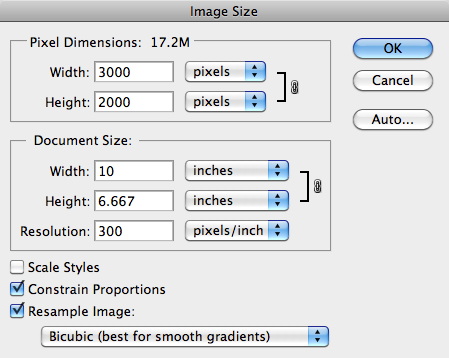
Step 3: If you only want to adjust the resolution, uncheck the Resample option so the pixel dimensions stay the same.
Step 4: Enter your desired value in the Resolution field.
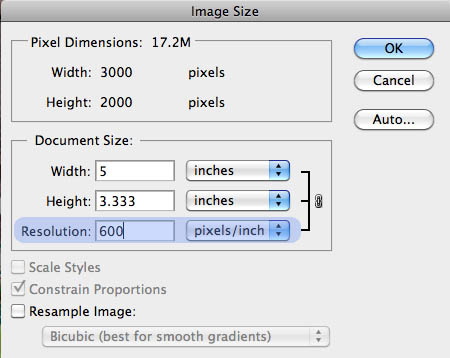
Step 5: Click OK to apply your changes.
That’s it! With the above simple steps, you can increase your photo’s resolution without losing details. Also, in Photoshop, you can use different editing tools. All these features you can use to make additional enhancements or correct flaws as you resize. The process is quick, precise, and highly flexible.
How to Increase Resolution of Image with AI Image Upscaler Software?
Another way to increase image resolution is by using AI image upscalers. Here we will introduce 2 main tools that actually work, both for PC and mobile users.
1. Increase Image Resolution with Leawo PhotoIns on PC
For PC, we highly recommend using Leawo PhotoIns. It is an AI-powered photo upscaler that can automatically improve your images, including color, clarity, detail, and facial features. It’s super easy to use with a simple and clear interface. If you have multiple files you can load at once and can increase their resolution at once. It’s the best option to enhance multiple photos at once while maintaining high quality. Now here is how to increase image resolution with Leawo PhotoIns on your PC. Here we will use Photo Enlarger, a built-in module of PhotoIns.
-
- Increase the resolution of images by up to 40× in one click.
- Enhance photos easily with advanced AI technology.
- Fix photo exposure and white balance issues intelligently.
- Support RAW and JPG photo processing.
- Automatically remove background from image.
- Optimize photo colors and perfect photo tints.
Step 1: Add Photos
To start, launch Leawo Photo Enlarger on your PC. Next, add your photos by clicking the Add Photo button. You can also simply drag and drop images into the interface.
Step 2: Enlarge Photos
Once your photos are loaded, you can enlarge them in a batch or one by one. If you are going for batch enlargement, then open the Settings panel and enable features. Here, you can enter the scale at which you want to enlarge the image.
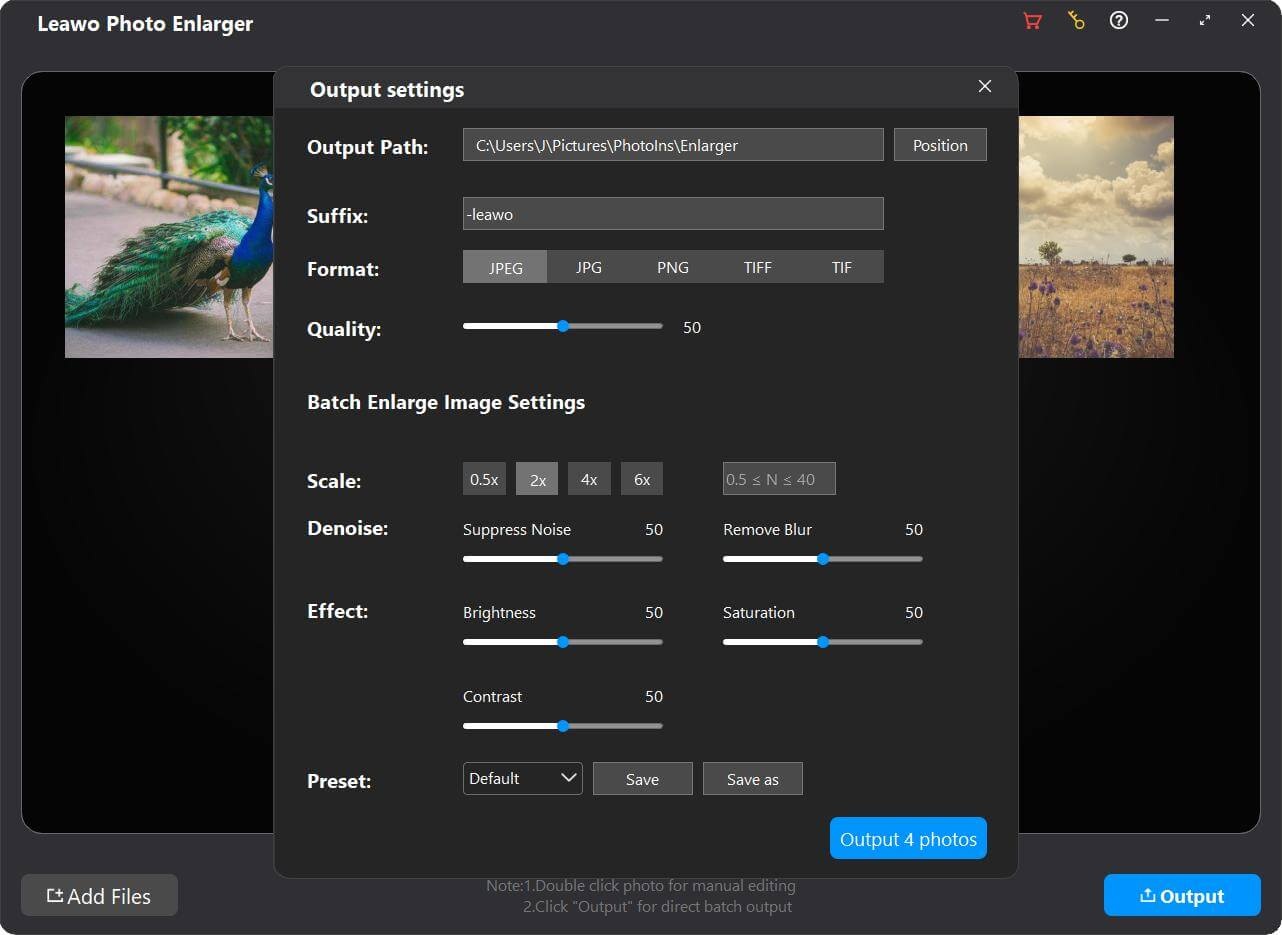
For single photo enhancement, you can double-click the photo to enter the editor, and then set enlargement parameters for the photo. You can enter the scale between 0.5 and 40 you want to enlarge in the box at the top left.
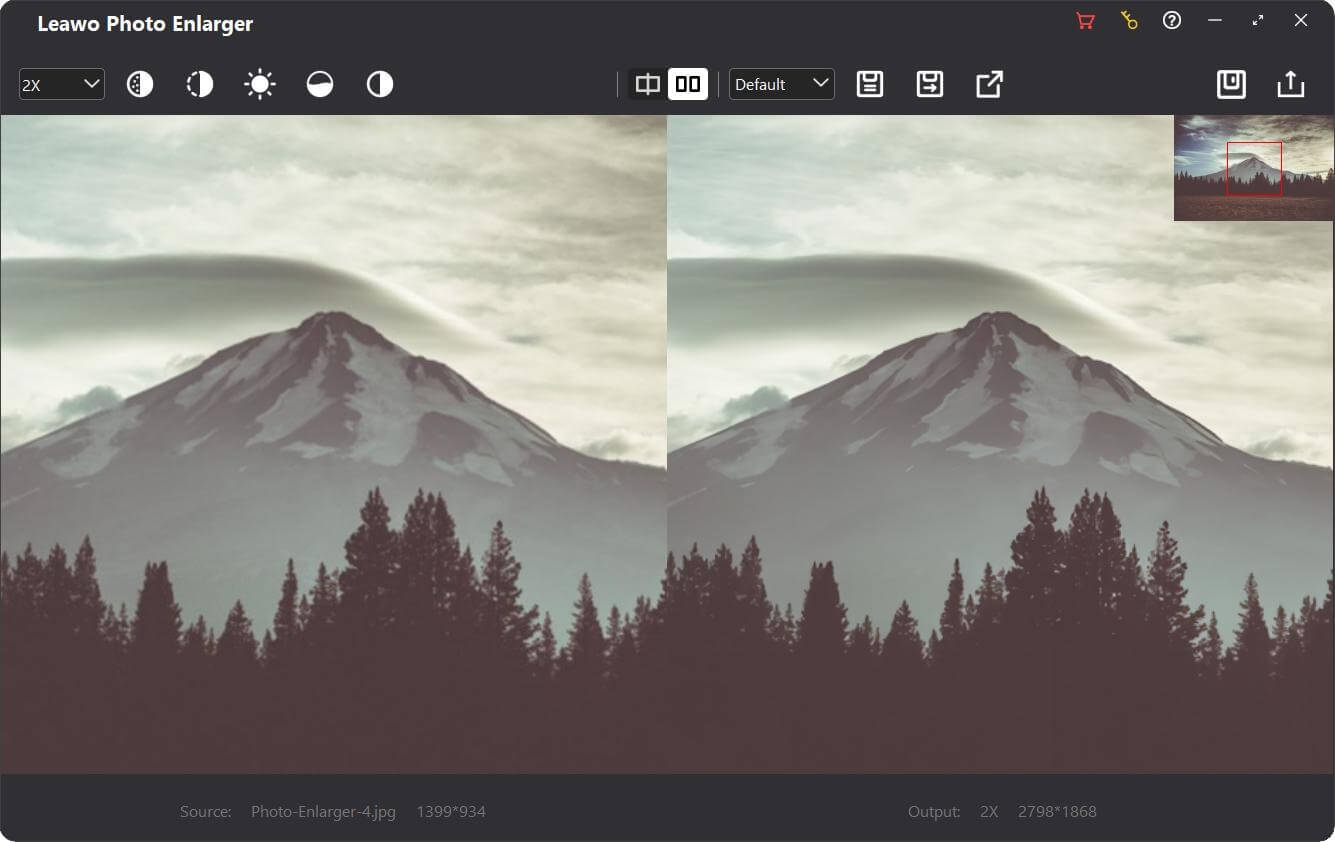
Step 3: Export Photos
Finally, click Output photos to save your enhanced images. That’s all you need to do. Once the process is complete, open the output folder to view all your AI-enhanced images.
2. Increase Image Resolution with Pixelup on Phone
If you are on your phone, the Pixelup is a mobile app that uses AI to enhance and upscale images. This app will improve clarity, reduce pixilation. Also, it has features like colorization and animation. Here is how to use it to increase the resolution of your image on the phone.
Step 1: Open the App Store and search Pixelup, or visit Apple.com to download the app.
Step 2: Next, open it and tap Get Started to begin using it.
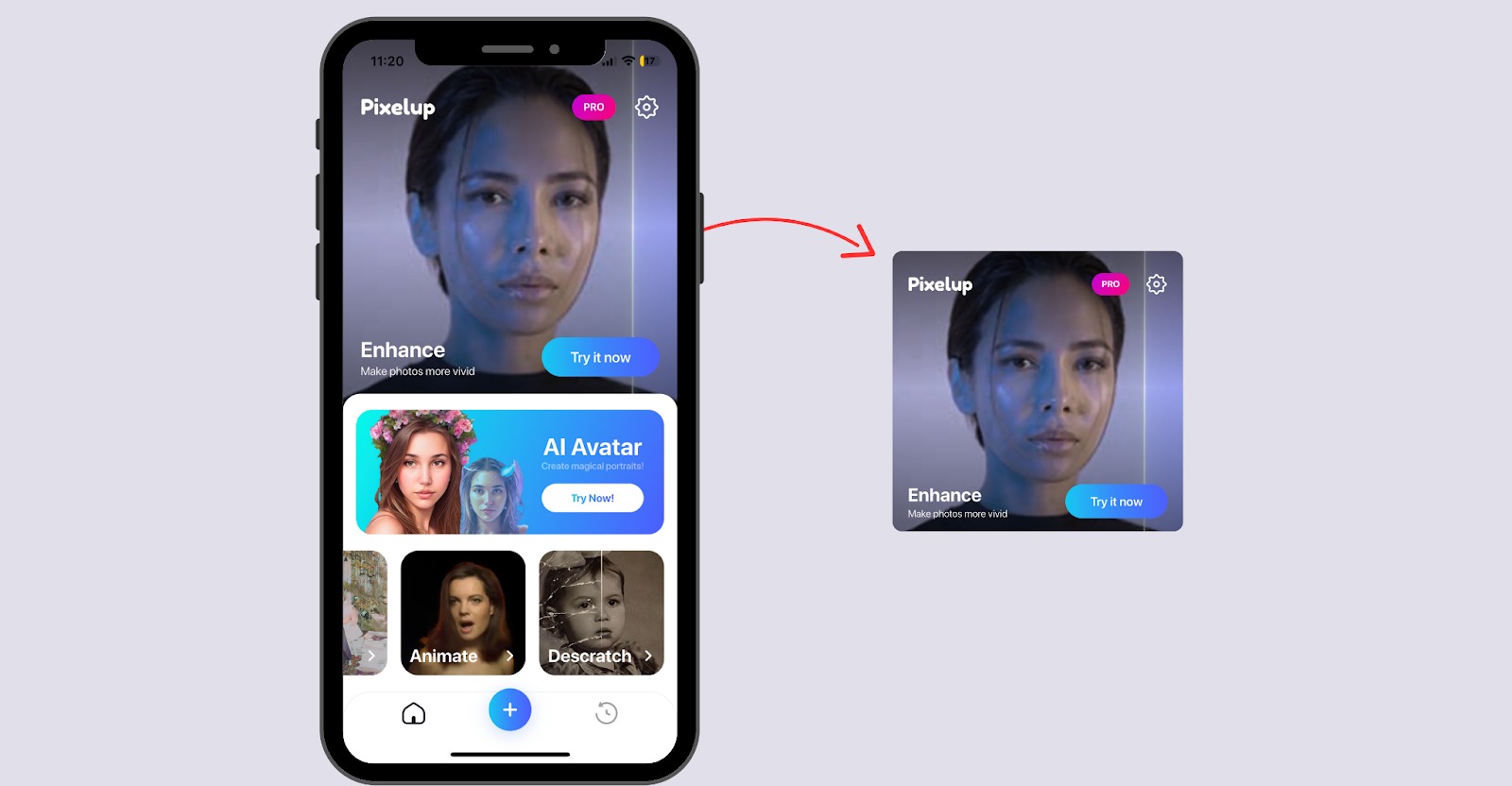
Step 3: Now, upload the image you want to enhance. Now tap Enhance to upscale it. You will need to watch a 60-second unskippable ad to complete this step.
And that’s all. After the enhancement is done, you can also use other features like Colorize, Animate, and more.
How to Increase Resolution of Image Online for Free?
If you don’t want to install any software, online AI upscalers are also a good choice. Tools like MyEdit Online Image Upscaler let you upload images directly from your browser and enlarge them automatically.
Step 1: Open the website and click Upload Image to choose the photo you want to enlarge from your album.
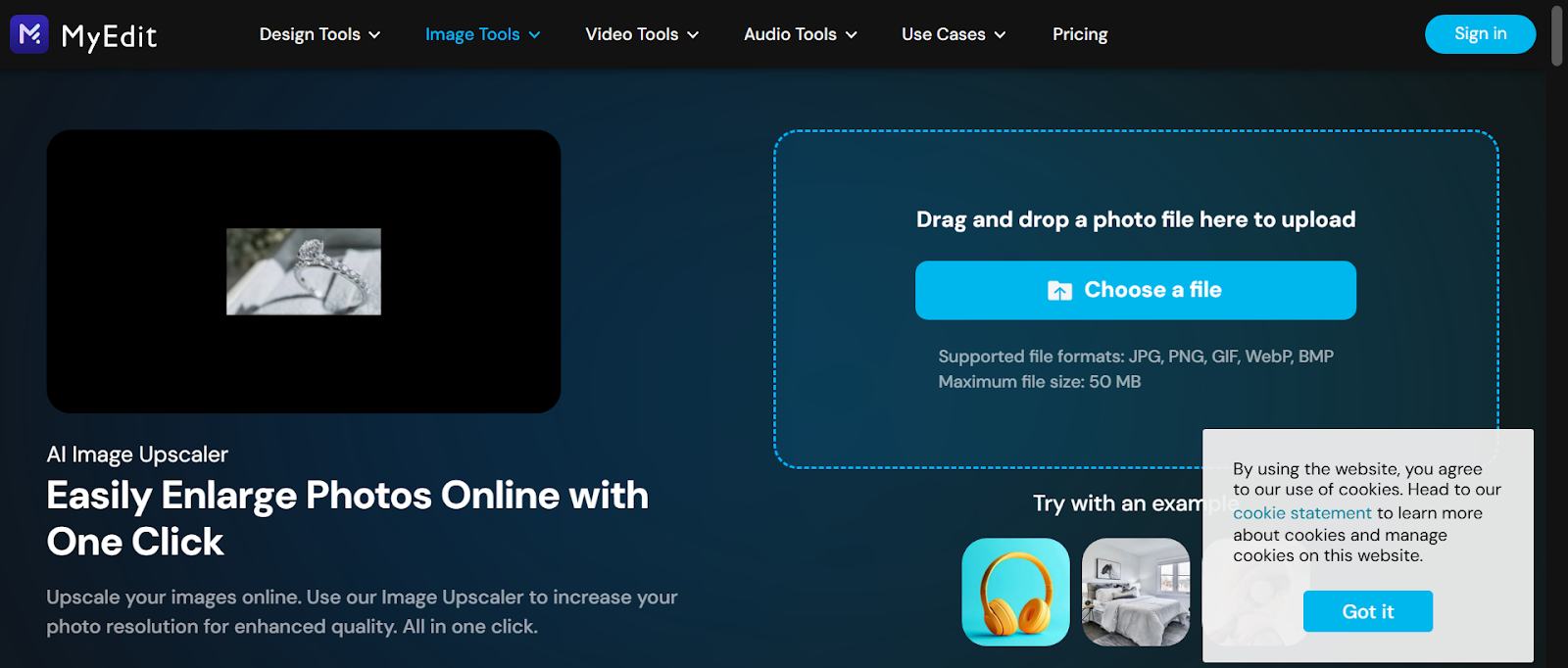
Step 2: Next, you can choose the upscaling factor or resolution you need. Here you will get 2x, 4x, or custom upscaling options.
Step 3: After selection, click Enhance or Upscale and wait a few seconds while the AI improves the image.
Step 4: Next, download the high-resolution version of your image to your device.
Tips to Increase Image Resolution Without Losing Quality
Below are some tips that you should keep in mind to avoid quality loss when increasing image resolution.
- It’s best to always start with the highest-quality source image possible. If you use low-resolution originals, it will only improve a little.
- It’s good to use AI-based tools for upscaling, like Leawo PhotoIns, which predicts missing pixels and reduces blur better than simple resizing.
- Also, adjust sharpening and noise reduction carefully to avoid over-processing.
- Save images in lossless formats like PNG or TIFF if you plan to edit further.
- If you have printed images, make sure their DPI matches the intended print size for better clarity.
Conclusion
We hope this guide helped you with increasing image resolution. We discussed various methods you can use to increase your image resolution. All options are yours. If you are on the phone, you can use the Pixelup app, but if you have many images that you want to work on, then use the batch processing features of Leawo PhotoIns. It provides the fastest, smartest results. It’s a reliable solution that will let you enhance photos quickly while preserving details and overall quality.
-

Complete Guide: Types of Blu-ray Discs and Their UsesCassie J./2026-03-30
-

How to Play Region B Blu-ray in Any Region?Cassie J./2026-02-28
-
How to Play AVI Files on Mac and WindowsCassie J./2026-01-30
-
The Complete Guide to Play Blu-ray on PS5Cassie J./2025-12-23
-
How to Increase the Resolution of Image?Cassie J./2025-11-26
-
How to View Twitter Without an Account?Cassie J./2025-10-31
-
How to Convert AVCHD to MP4 on Mac, Windows, Android, and iPhone?Cassie J./2025-09-28
-

What is Region 1 DVD? How to Play Region 1 DVD in Other Regions?Cassie J./2025-08-21
-

How to Burn YouTube Video to DVD for Offline Archive?Cassie J./2025-07-11
-

Can’t Play Video? 6 Quick Solutions for “Video Codec Not Supported”Cassie J./2025-06-25