Last updated on 2025-08-21, by
What is Region 1 DVD? How to Play Region 1 DVD in Other Regions?
Summary:
- If you get Region 1 DVD discs and would like to know how to play region 1 DVD discs in other regions, this post would answer you well.
“How can I play region 1 DVD disc while I’m not living within the USA? I have some DVD discs that were released in the USA and would like to watch these region 1 DVD discs in UK. But there seemed to be a region code restriction.” If you frequently play DVD discs with your standalone DVD players, you might also come across such kind of issue. This post will show you how to play region 1 DVD disc in other regions.

OutlineCLOSE
What is Region 1 DVD?
Firstly, let’s make clear what is DVD region code and what is region 1 DVD. To help DVD content right holders control the international distribution of their DVD discs, DVD region code was introduced. All DVD discs and standalone DVD players are released and distributed with a certain code for corresponding regions. A DVD disc could only be played back through a standalone DVD player when they get the same DVD region code.
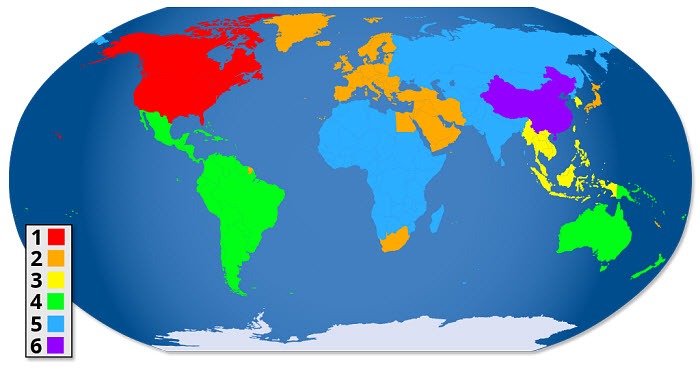
There are in total 7 different DVD region codes, respectively from 0 to 6. Among all these DVD region codes, region 1 DVD discs and region 1 DVD player refer to the DVD discs/players released in the USA and Canada. You could check the 7 DVD region codes and their respective geographic region in the below table.
| DVD Region Code | Corresponding regions/countries |
| 0 | All regions |
| 1 | Canada, the United States, and U.S. territories. |
| 2 | Europe, Western Asia, Northern Africa, South Africa, and Japan. |
| 3 | Southeast Asia (Including Cambodia, Hong Kong, Indonesia, Laos, Malaysia, Myanmar, Philippines, South Korea, Taiwan, Thailand, Vietnam) |
| 4 | Mexico, Central and South America, and the South Pacific. |
| 5 | Africa, North and South Asia. |
| 6 | China mainland. |
How to Check If a Disc is Region 1?
While a region 1 DVD disc could only be played back with a region 1 DVD player, how can we check if a DVD disc is region 1 or not? You could try the below operations:
- Firstly, we need to know that the Region 1 of DVD covers the United States, Canada and U.S. territories. If any disc comes with one of these regions, it is region 1 DVD.
- Meanwhile, generally, the region code of a DVD disc could be checked on the DVD disc case or disc itself. A globe icon with the number “1” printed on the case or disc shows you that it is a region 1 DVD disc.
- If you have already inserted the DVD disc into a standalone DVD player, you might then be able to view the disc information through the player or its settings.
- Sometimes you might get a multi-region DVD disc, which means it could be played in multiple regions.
- You might also get DVD discs that have All or 0 marked on the case or disc itself. This means all region DVD disc, which could be played back in all regions.
How to Change Your DVD-ROM Drive’s Region 1 Setting to Other Region Code?
The very first solution to help you play region 1 DVD disc is to switch the region code of your DVD-ROM drive on your computer or your standalone DVD player. The below guide would show you how to change DVD region code to play region 1 DVD disc freely.
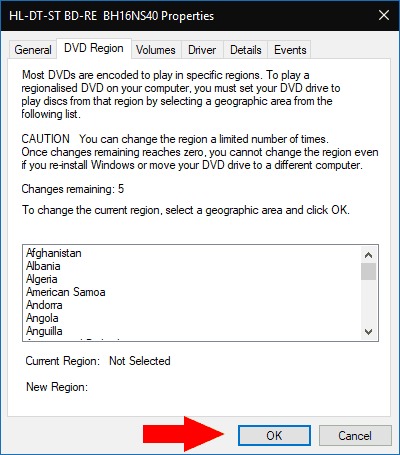
1. How to change DVD drive region code on Windows
Step 1. Open “This PC” and then right click the DVD drive to choose “Properties” option.
Step 2. Open “Hardware > Properties” option.
Step 3. Open the “DVD Region” tab to select region 1 territories (Canada or USA) as target DVD region code.
Step 4. Then click the “OK” button.
2. How to change DVD drive region code on Mac
Step 1. Insert your region 1 DVD disc into the DVD drive of your Mac computer.
Step 2. If the region codes of your DVD drive and DVD disc don’t match, there will pop up a dialog, on which you will be asked to select a DVD region for your DVD drive.
Step 3. Click the “Change Region to” option and then select region 1 territories (Canada or USA) as target DVD region code.
Step 4. Click the “Set Drive Region > Lock” options to confirm and save changes.
3. How to change DVD player region code on TV
Step 1. Eject your DVD disc from your DVD player first.
Step 2. On the remote controller, press the “Pause” button.
Step 3. Press “3141590” on the remote controller.
Step 4. Enter a new DVD region code (1).
Step 5. Press “OK” button and then press “Pause” button to exit region code settings mode.
Step 6. Insert your region 1 DVD disc into the DVD player. Now you could play the region 1 DVD disc.
Note: You are only allowed to change the DVD region code for up to 5 times. Once you have reached the limit, your DVD player or DVD drive will be settled to the final DVD region code forever. Therefore, don’t switch regions frequently.
How to Play Region 1 DVD in Other Regions with DVD player?
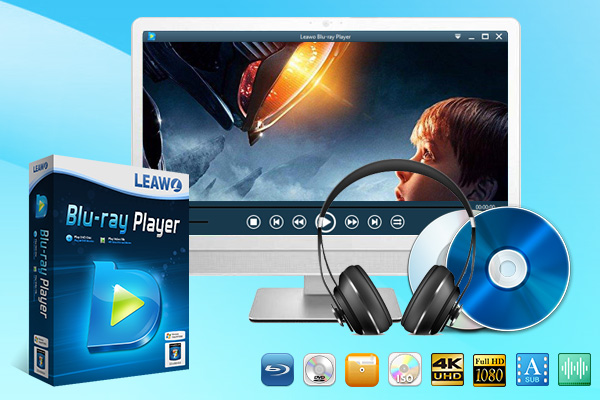
Alternatively, you could purchase an all-region DVD player hardware or software to play region 1 DVD disc. All-region or region-free DVD player hardware or software will bypass the DVD region code restriction and let you freely play back DVD discs of all regions easily and smoothly. You could get multiple region-free DVD player hardware and software tools like Sony, Panasonic, VLC, PotPlayer, etc. Among all these region-free DVD players, Leawo Free Blu-ray Player offers you free solution to play back DVD discs of all regions for free.
-
All-inclusive digital media player combo to play 4K Blu-ray/Blu-ray/DVD disc, folder and ISO image file, video (up to 8K), and audio files without quality loss.
- Play back discs of various kinds, regardless of disc protection and region restriction.
- Quality-lossless video playback for HD media file.
- Totally free to use. No subscription is required.
The below guide would show you how to play region 1 DVD disc with Leawo Free Blu-ray Player in other regions:
Step 1. Download, install and kick off Leawo Free Blu-ray Player on your computer.
Step 2. Insert your region 1 DVD disc into the DVD drive.
Step 3. On Leawo Free Blu-ray Player, click the disc name on the Home interface to start playing region 1 DVD disc directly.

Leawo Free Blu-ray Player will start to play your DVD disc directly. It will bypass the region restriction in the background automatically, requiring no human interference. During playback, you could set video, audio, subtitle, etc.
How to Permanently Convert Region 1 DVD to Region-free Files?
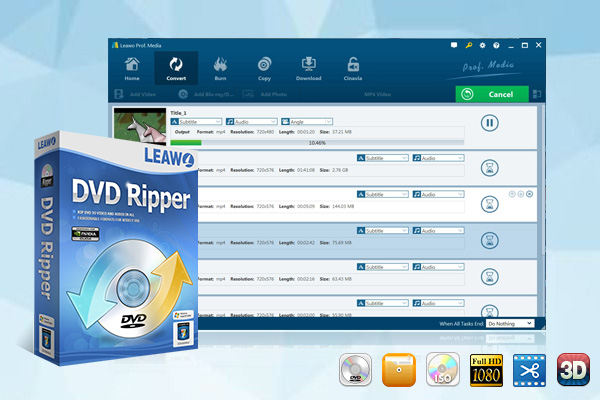
Another solution to help you permanently play region 1 DVD content without being restricted by DVD region code and modifying DVD region code is to rip region 1 DVD to digital files with various DVD ripping and converting software tools. Multiple DVD ripping tools could be applied here, such as HandBrake, VLC Media Player, FreeMake, MakeMKV, etc. Leawo DVD Ripper offers you comprehensive DVD to video solution, regardless of DVD disc protection and region restriction.
-
Powerful DVD ripper to decrypt and rip DVD discs with disc protection and region code, and convert DVD main movie to videos files for space saving.
- Convert DVD to MP4, MKV, AVI, MOV, FLV, and other 180+ HD/SD formats
- Convert 2D DVD movies to 3D movies with 6 different 3D effects.
- Select subtitles from source DVD movies for output videos.
The below guide would show you how to rip and convert region 1 DVD disc to digital files for unlimited playback.
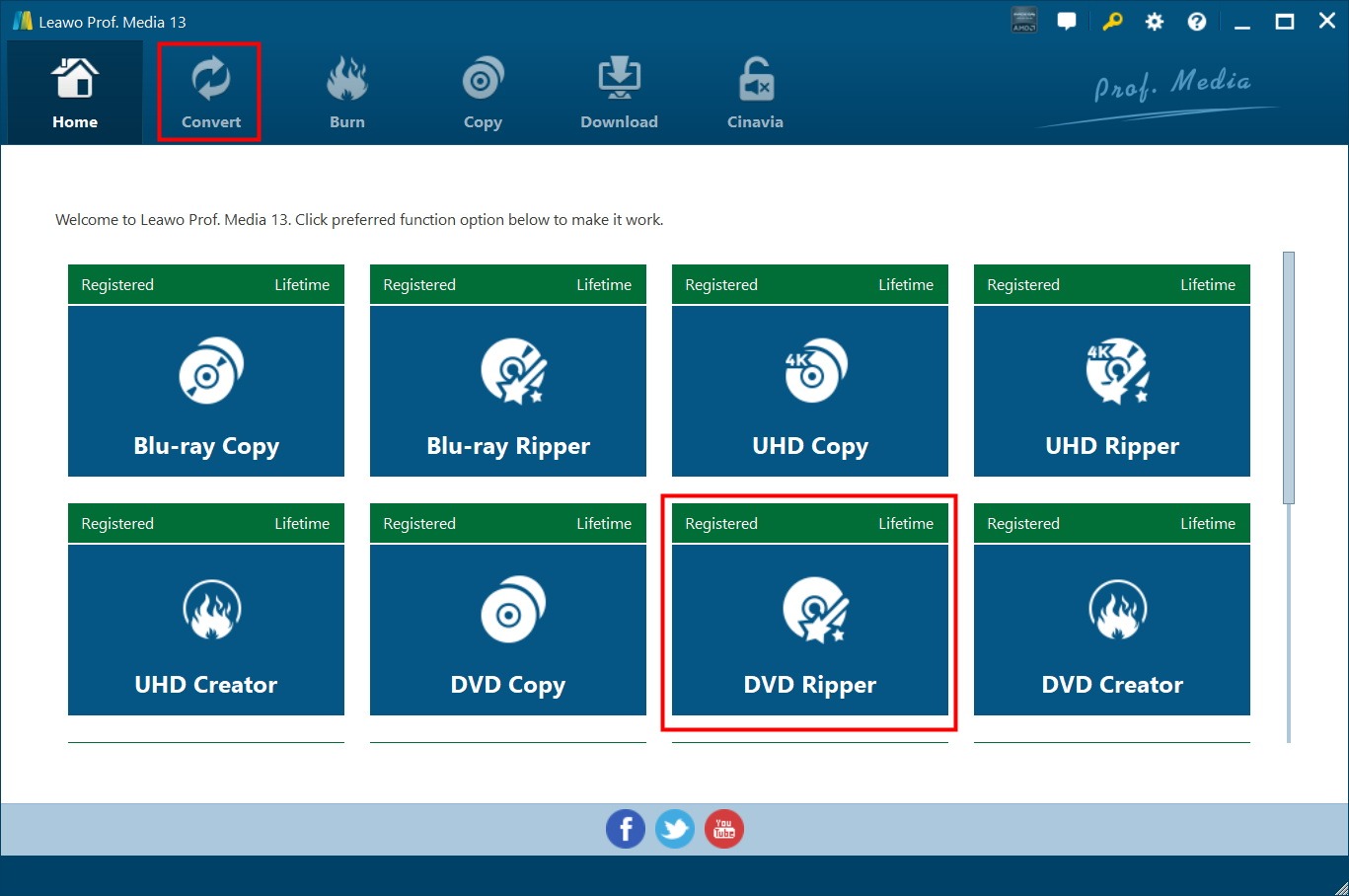
Step 1: Load source region 1 DVD disc
Download, install and kick off Leawo Prof. Media. Open the “DVD Ripper” module and then click the “Add UHD/BD/DVD” drop-down button to browse and load region-1 DVD disc from DVD drive. You could select content to load in different loading modes.
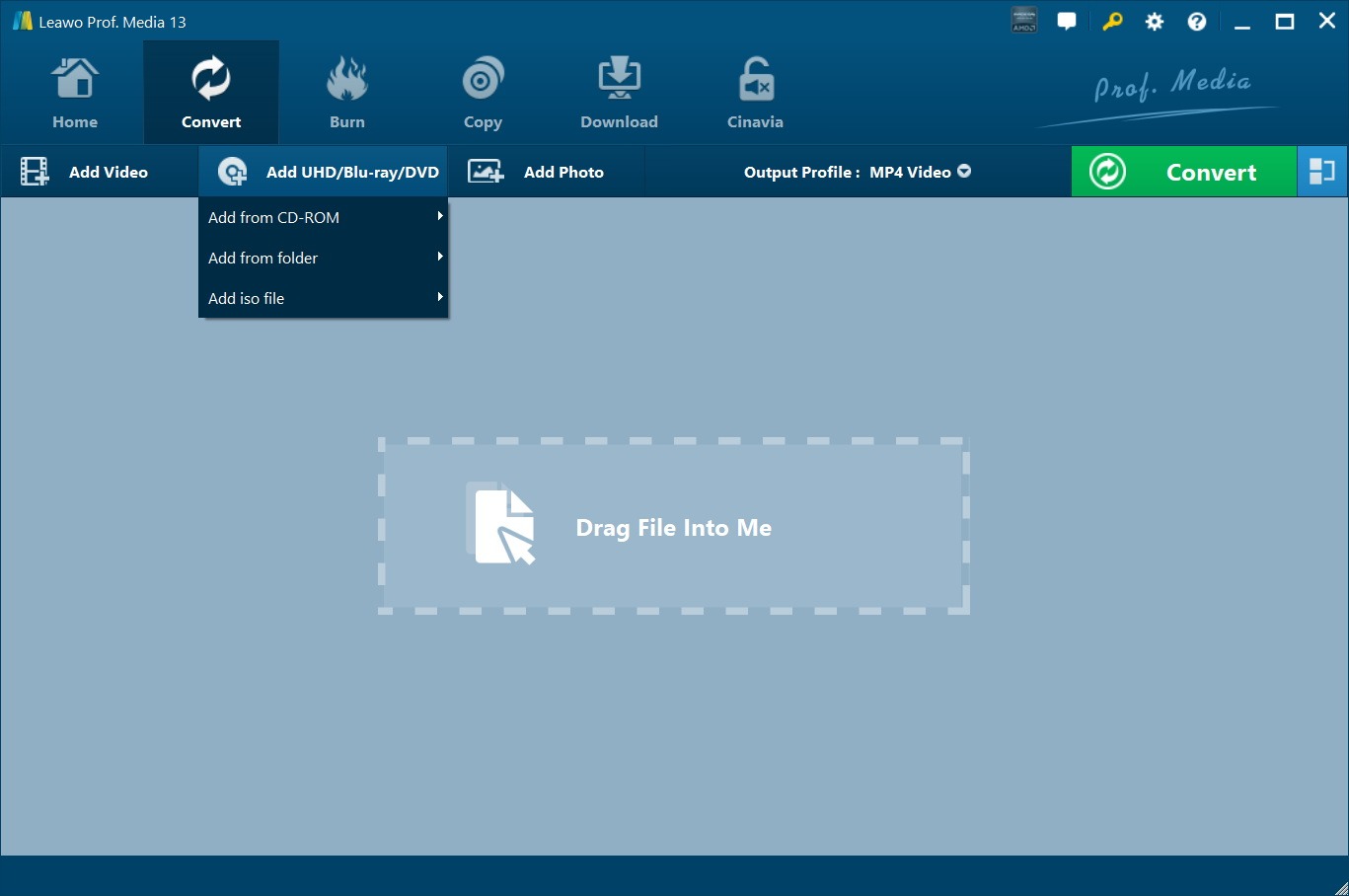
Step 2: Set output format
Click the “Output Format” button and then choose “Change” option on the drop-down menu to enter the “Profile” panel, where you could select a digital format as output such as MP4 or MKV. You could even modify the video and audio parameters of output format.
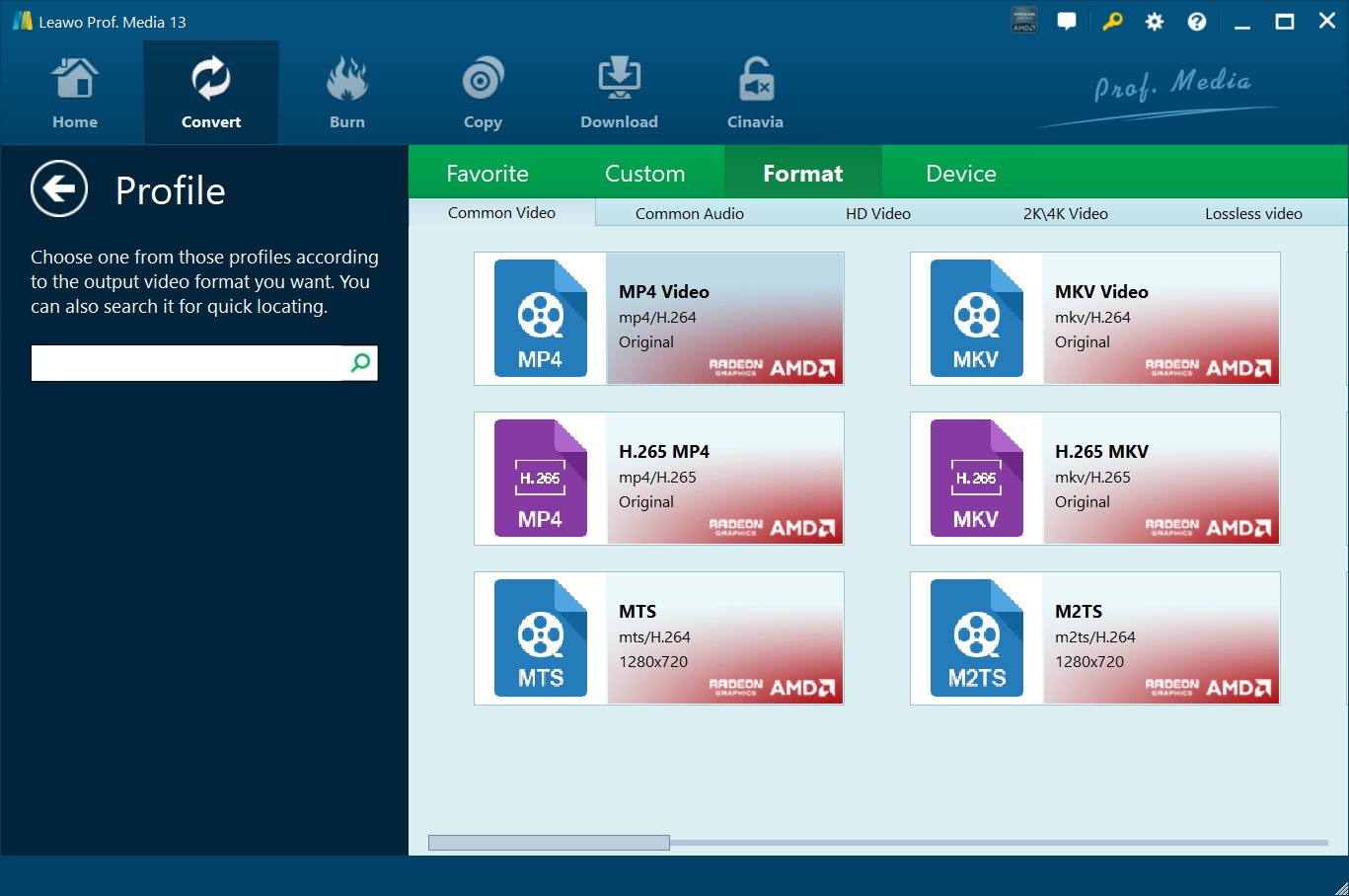
Step 3: Set output directory
Afterwards, click the big green “Convert” button. On the right sidebar, set output directory in the “Save to” box. Finally, click the bottom “Convert” button to start ripping and converting region 1 DVD disc to digital files.
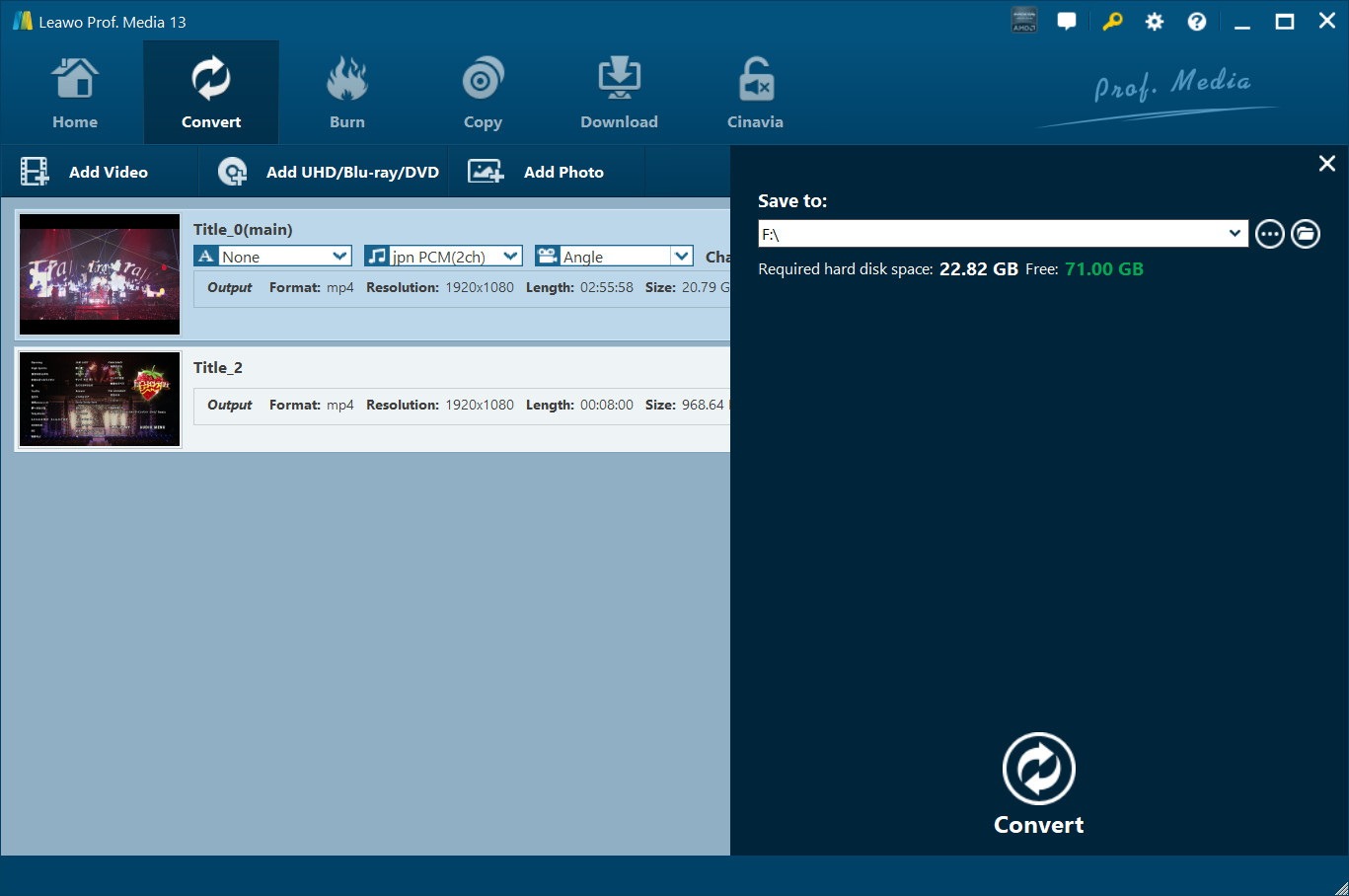
Once the ripping and converting completes, you will get a digital file of region-1 DVD disc. The digital file contains no region restriction and could be played back on various media players or devices as you like.
FAQs
1. Can I watch region 1 DVD disc directly in regions outside of the USA and Canada?
No, unless you get a DVD player or DVD drive that is region 1. DVD players outside of the USA and Canada are coded with other DVD region codes can’t directly play back region 1 DVD discs.
2. Can I change the region code of DVD disc?
No, you can’t. The region code of a DVD disc is set once it is released by the movie studios and can’t be modified.
3. What are the limits of changing region codes of DVD players or DVD drives?
You could only change the region code of a DVD player or DVD drive for up to 5 times. The region code will stay unchangeable once it is modified in the fifth time.
4. Can I convert region 1 DVD to other regions?
You could make use of DVD ripping software like Leawo DVD Ripper to rip and convert region-locked DVD discs to region-free digital files for unlimited playback.
Conclusion
If you have a region 1 DVD disc and would like to play region 1 DVD disc on other regions, the above solutions should have been helpful to you. Changing the region code number is less recommended since it has limitations. It is better you change region code of DVD player or DVD drive for temporary occasions. By employing region-free DVD player hardware/software and DVD ripping tools, you are able to play DVD discs of various regions without modifying the region code. The latter solutions are more recommended for its convenience, stability, and safety.
-
Complete Guide: Types of Blu-ray Discs and Their UsesCassie J./2026-03-30
-
How to Play Region B Blu-ray in Any Region?Cassie J./2026-02-28
-
How to Play AVI Files on Mac and WindowsCassie J./2026-01-30
-
The Complete Guide to Play Blu-ray on PS5Cassie J./2025-12-23
-
How to Increase the Resolution of Image?Cassie J./2025-11-26
-
How to View Twitter Without an Account?Cassie J./2025-10-31
-
How to Convert AVCHD to MP4 on Mac, Windows, Android, and iPhone?Cassie J./2025-09-28
-
What is Region 1 DVD? How to Play Region 1 DVD in Other Regions?Cassie J./2025-08-21
-
How to Burn YouTube Video to DVD for Offline Archive?Cassie J./2025-07-11
-
Can’t Play Video? 6 Quick Solutions for “Video Codec Not Supported”Cassie J./2025-06-25