Last updated on 2025-07-11, by
How to Burn YouTube Video to DVD for Offline Archive?
There is so much good stuff on YouTube tutorials, documentaries, music videos, and even personal projects you might want to have a permanent copy of your favorite videos. Burning a YouTube video on DVD would be a practical solution to watch it whenever you want then in another way offline, personal backup, or share to others. This guide will show you how to download YouTube videos and then burn to DVD them in just a few simple steps. Its best for users looking to safely archive videos or anyone who prefers watching on a DVD player offline. Here is what you will need and how the process works.
OutlineCLOSE
Tips for YouTube Video to DVD Conversion on PC
It may sound complicated to convert a YouTube video into a DVD on your PC, but in fact, it is very simple when you have the right tools in hand and know what to expect.
First, you’ll need a good YouTube video downloader. Choose a program that’s safe, easy to use, and allows high-quality downloads in formats like MP4 or AVI. It may sound complicated to convert a YouTube video into a DVD on your PC, but in fact, it is very simple when you have the right tools in hand and know what to expect.
Once the video is saved to your computer, the next step is using disc authoring software. This is software that allows you to convert the video file you want to put on the DVD, and burn it to disc. Certain programs even allow you to create menus and chapters, giving your DVD a professional touch. There are free and paid ones out there so pick one that matches your comfort level and needs.
You’ll also require a blank DVD (typically DVD-R or DVD+R) and a computer equipped with a DVD burner. You can use an external DVD writer that connects via USB if there is no DVD writer available on your PC. Check the preview Before burning the final product, it is recommended that you check your project in preview mode in the software this will simply show whether the video quality is correct and whether everything runs as it should.
All you need are the right tools and a little patience in order to convert your favorite YouTube videos into DVDs for offline viewing or permanent archiving.
Preparation: Save YouTube Videos to Local Files
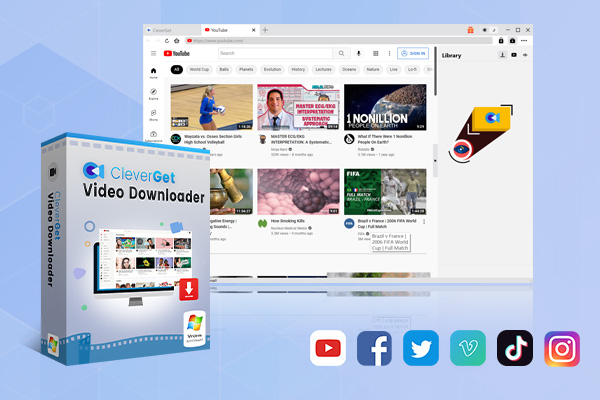
The first step to burning a YouTube video to a DVD is to download it onto your computer. Since you cannot directly burn videos from the YouTube site, it is important to have a reliable video downloader. A Quick Solution: CleverGet Video Downloader. CleverGet is a lightweight but powerful program that enables you to download high-quality videos from YouTube and other websites. No matter you are saving a music video, a video tutorial, or even a feature film, CleverGet can help you get it fast without ads and save it to MP4, MKV, WebM, or other formats.
-
– Enable users to download online videos, movies, TV shows, live streams, etc. from 1000+ websites.
– Detect M3U8 links intelligently with an inherent browser to download videos.
– Download up to 8K video and audio at 320 kbps without quality loss.
– Support to download TV series episodes of all/certain seasons in batches.
– Download online video to MP4/MKV/WEBM or other available popular formats.
Here’s how to use it:
Step 1: Copy the link of the YouTube video you want to save and paste it into the address bar inside CleverGet.
Step 2: The tool will analyze the link. Choose your preferred version of the video, such as resolution and file type.
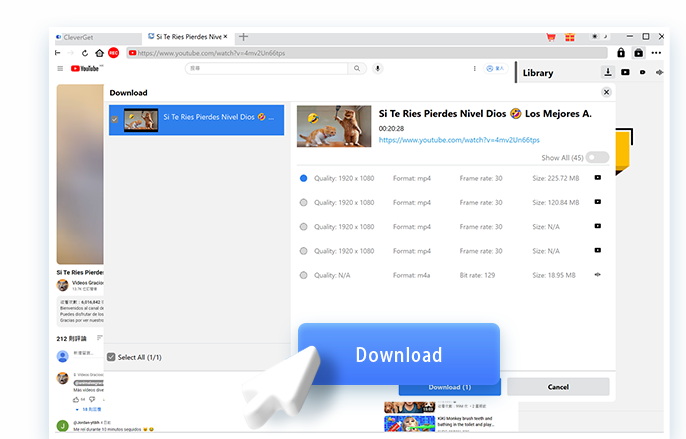
Step 3: Click the Download button, and CleverGet will start saving the video to your computer. Once the download is complete, you’ll be ready to move on to the DVD burning process.
Step-by-Step: Burn YouTube Videos to DVD
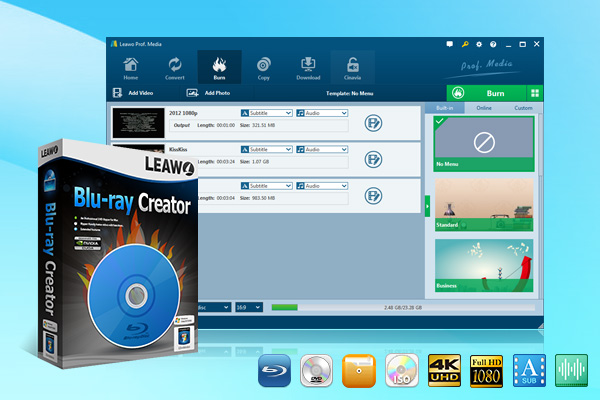
Now that you have downloaded your YouTube video to your computer, you can go ahead and burn it to a DVD. One of the most trustworthy tools that offer this is Leawo Blu-ray Creator. It is a reliable and feature-rich program that supports more than 180 video and photo formats. Video Compatibility: MP4, AVI, MKV, even smartphone footage etc., smooth and customizable! It supports for various types of Blu-ray/DVD discs including BD-50, BD-25, DVD-9, DVD-5, and more, to burn contents to Blu-Ray/DVD disc, folder, or ISO image file.
-
– Burn videos and photos to Blu-ray/DVD in 180+ formats.
– Burn multiple media files to one Blu-ray/DVD file in batch with 100% quality.
– Provide an internal video editor for personalized Blu-ray/DVD content.
– Offer 40+ selectable disc menu templates.
Here’s how to use it:
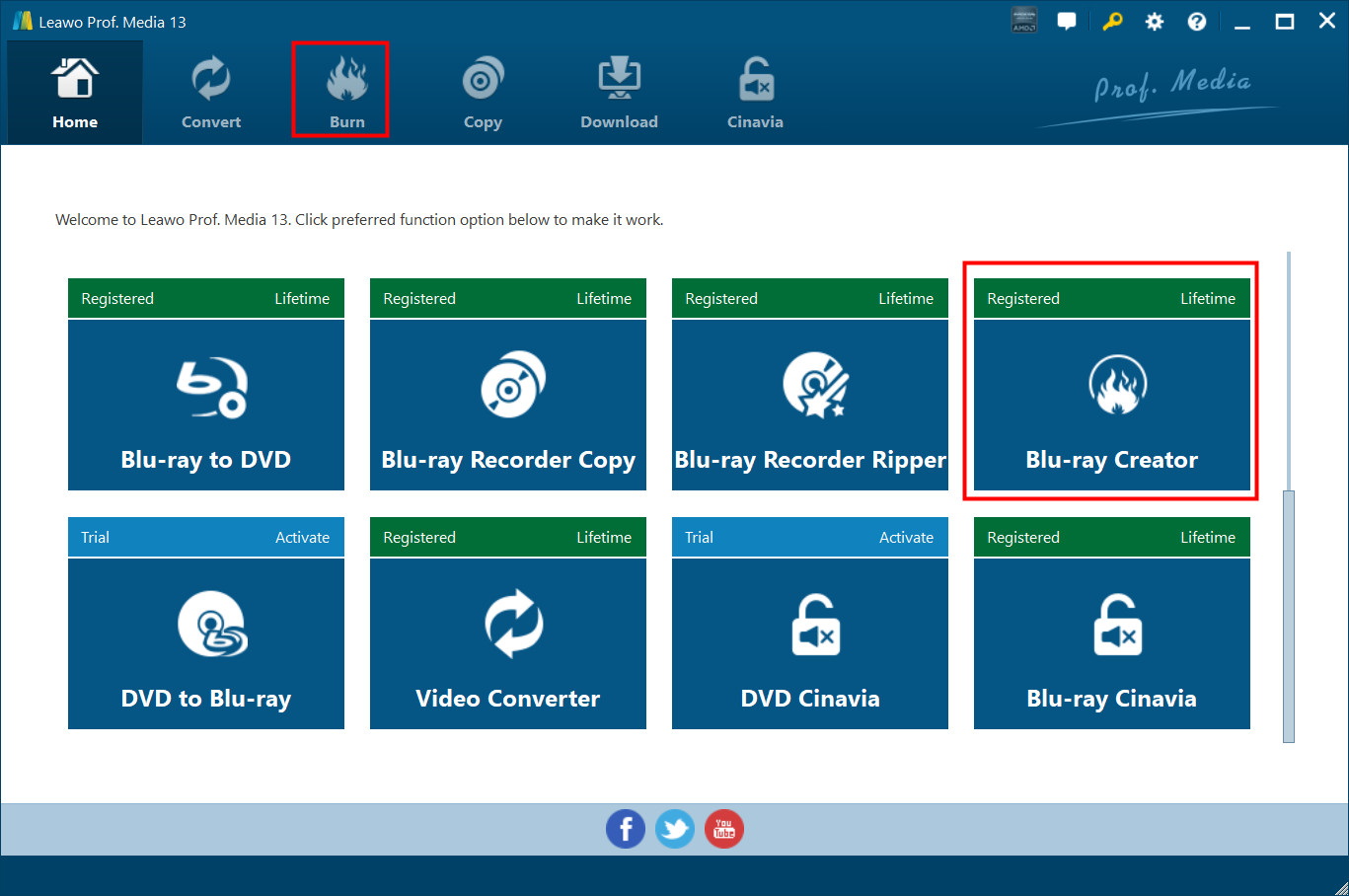
Step 1: Launch Leawo Blu-ray Creator
Start by opening the Leawo Prof. Media suite on your PC. Click on the Blu-ray/DVD Creator tab to enter the disc-burning module.
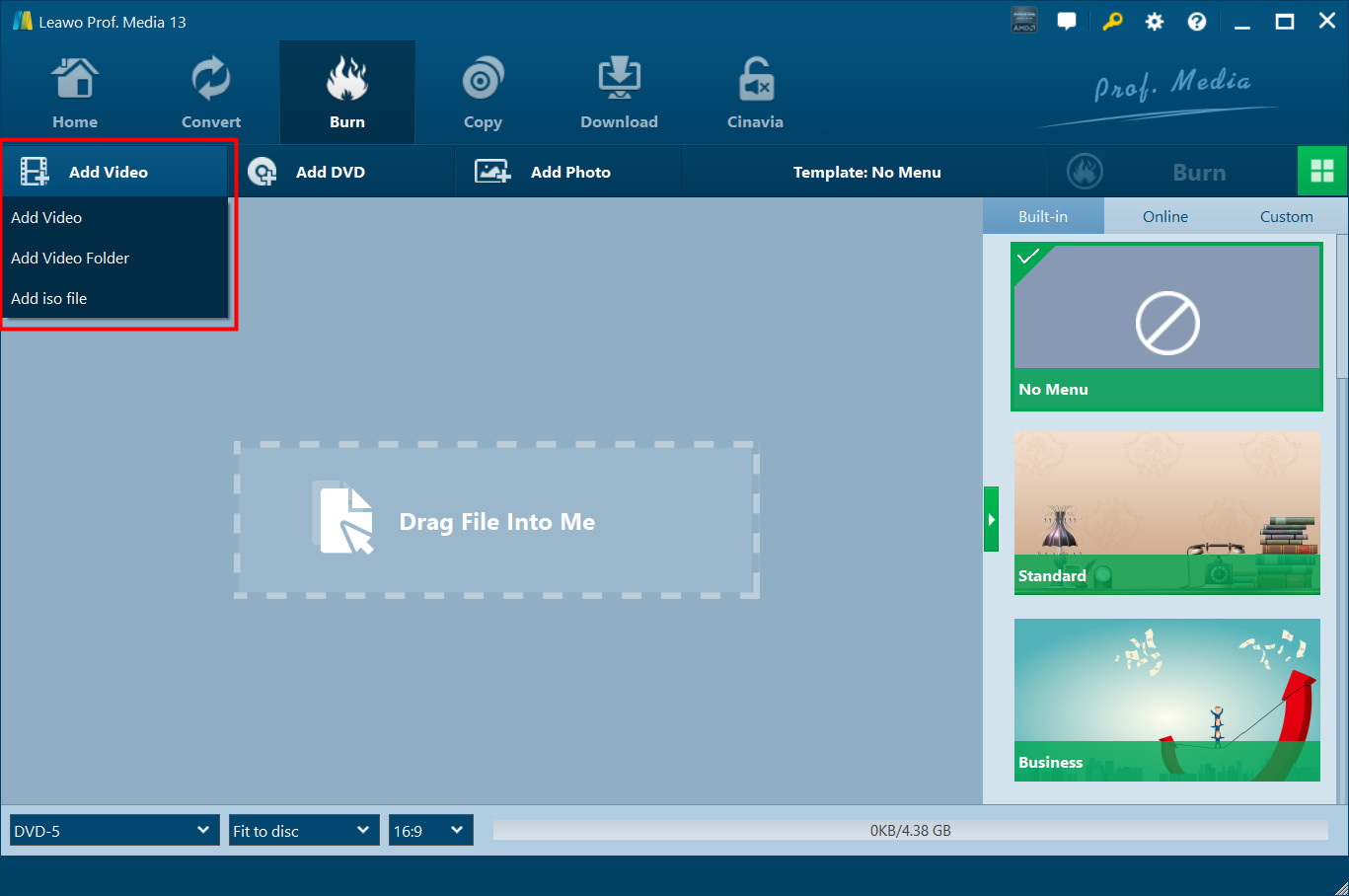
Step 2: Add Your Video File
Next, add the video file you want to burn. You can either drag and drop the file directly into the interface or click on Add Video > Add Video/Add Video Folder to browse and select your downloaded YouTube video from your computer.
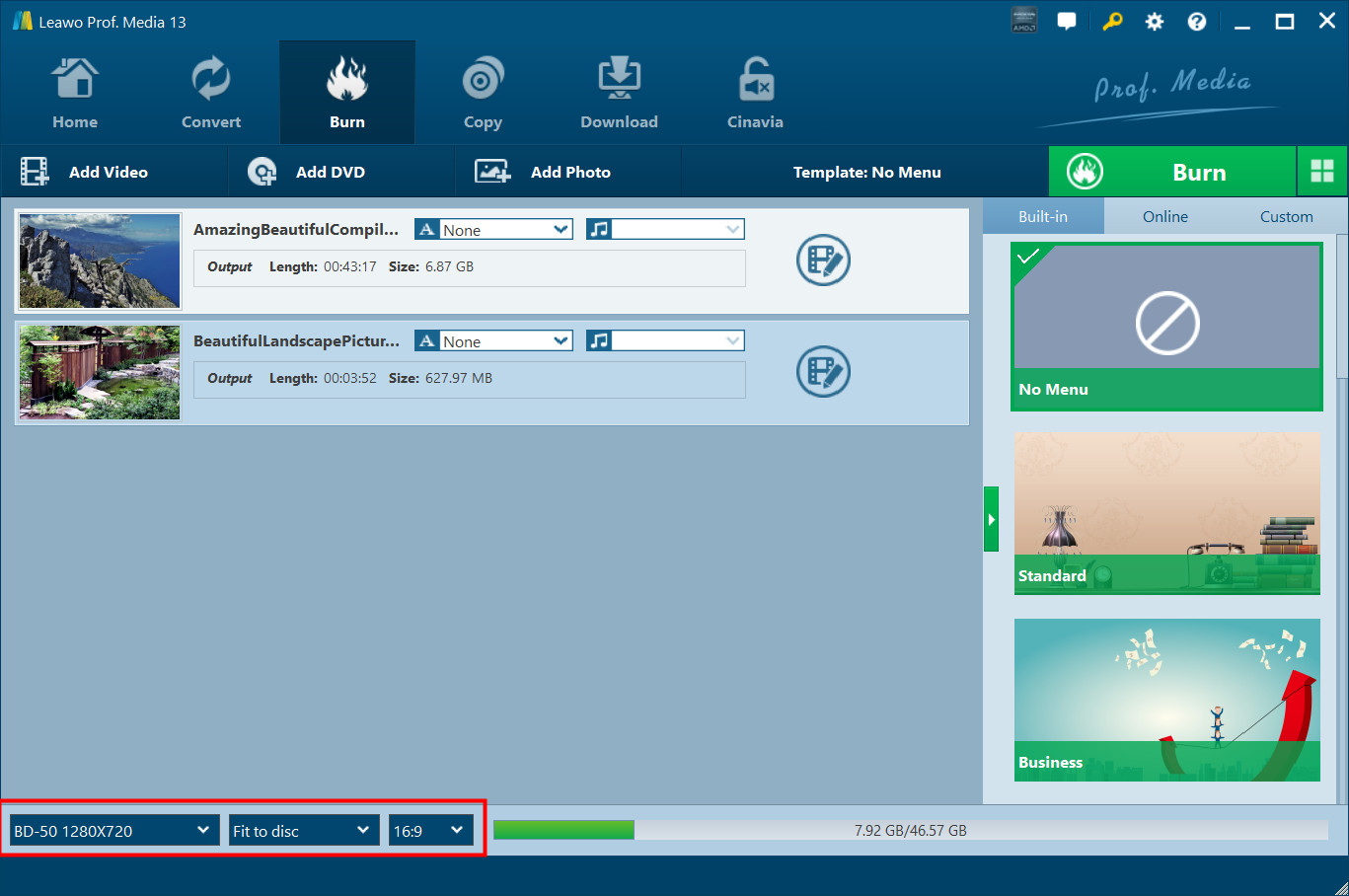
Step 3: Choose Output Settings
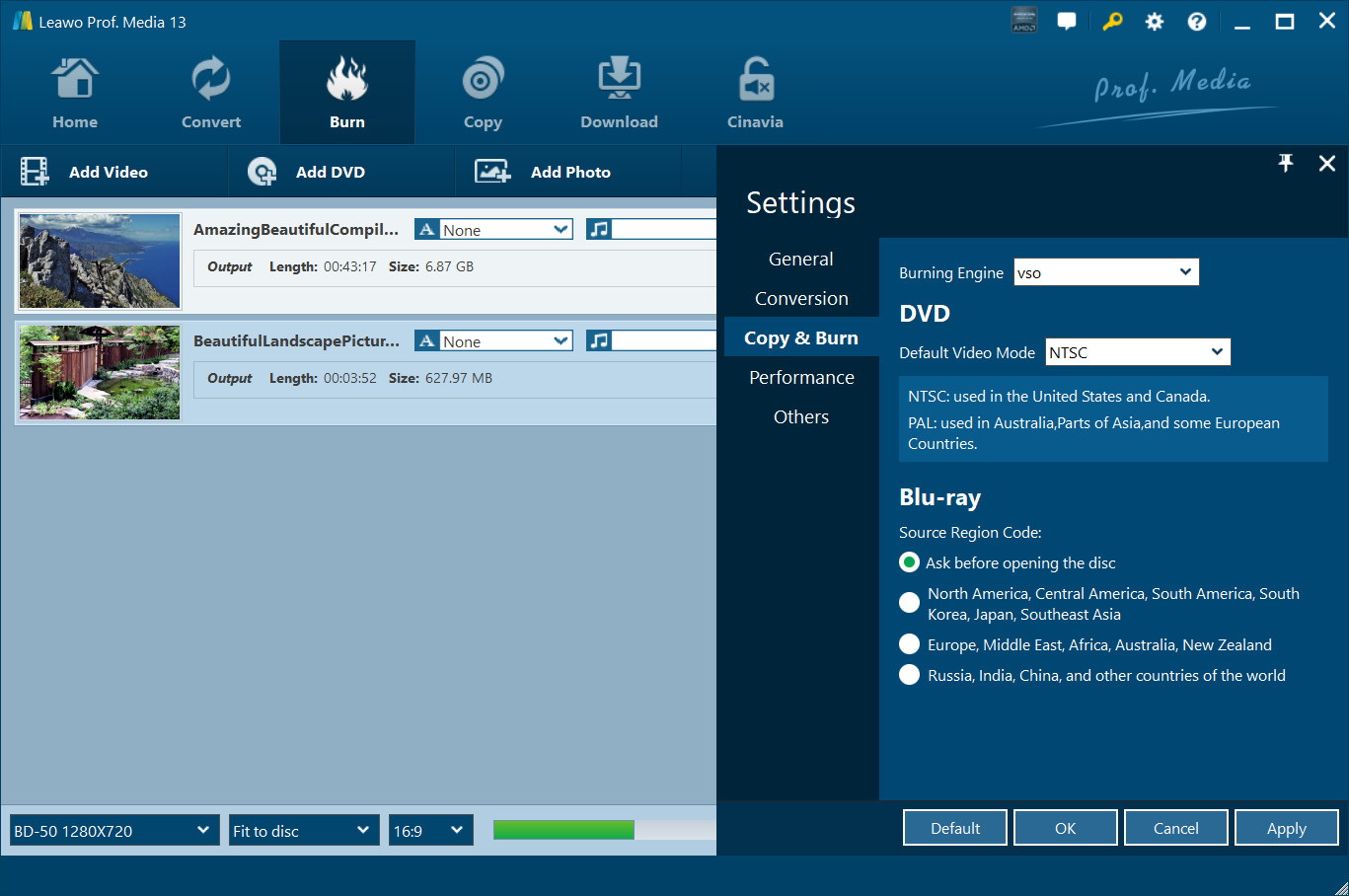
After your video is loaded, you’ll need to set the output preferences. Choose your disc type DVD-5, DVD-9, BD-25, or BD-50 and select your preferred aspect ratio, either 4:3 or 16:9. Blu-ray burning only supports 16:9. Choose the option of “Fit to Disc” for quality, that way the software will fit the video to the highest possible resolution according to the disc size. Another option is to choose subtitles and audio tracks, as well as to edit the video and change the disc menu to customize your project. If you wish to do a little extra thin-tuning, then you can click over to the Settings tab to set the default video mode, burning engine, and Blu-ray region code.
Step 4: Start the Burning Process
When everything looks good, press the green button that says “Burn” In the sidebar that appears, you can give your disc a name, select the type of output (folder, ISO image, or both), and browse your computer for the folder to save it. If you inserted a blank DVD into your DVD drive, Leawo will detect it, and you can set it as burning target. Once ready, click “Burn” once again to begin the process.
Conclusion
Burning YouTube videos onto DVD provides a good solution for offline enjoyment, backups or even giving as a gift. Saving a tutorial, show, or memory is a lot easier than you think, once you have the tools you need. To have a smooth experience, you can use video downloaders to download YouTube videos securely in HD. After that, it will simply take a couple of minutes to turn the files into an expert-looking DVD or Blu-ray with a professional-ready look, using Leawo Blu-ray Creator. Just a couple of steps, and you will get a permanent and playable copy of the content you love you can play it anytime, anywhere.
-
Complete Guide: Types of Blu-ray Discs and Their UsesCassie J./2026-03-30
-

How to Play Region B Blu-ray in Any Region?Cassie J./2026-02-28
-
How to Play AVI Files on Mac and WindowsCassie J./2026-01-30
-

The Complete Guide to Play Blu-ray on PS5Cassie J./2025-12-23
-

How to Increase the Resolution of Image?Cassie J./2025-11-26
-
How to View Twitter Without an Account?Cassie J./2025-10-31
-
How to Convert AVCHD to MP4 on Mac, Windows, Android, and iPhone?Cassie J./2025-09-28
-

What is Region 1 DVD? How to Play Region 1 DVD in Other Regions?Cassie J./2025-08-21
-
How to Burn YouTube Video to DVD for Offline Archive?Cassie J./2025-07-11
-

Can’t Play Video? 6 Quick Solutions for “Video Codec Not Supported”Cassie J./2025-06-25