


How to convert Blu-ray/DVD to MKV on Mac with multiple subtitles and audio tracks retained?
Leawo Blu-ray to MKV Converter for Mac provides the easiest-to-use but most effective Blu-ray/DVD to MKV conversion on Mac with lossless quality. It could easily convert Blu-ray/DVD to MKV on Mac with multiple audio tracks and subtitles retained upon your own will. The multi-language audio/subtitle support of Leawo Blu-ray to MKV Converter for Mac allows you to watch Blu-ray/DVD movies on your computer or MKV players in the language you’re familiar with, so as to improve your movie experience. It also comes with other wonderful and user-friendly features like: merge files into one, snap screenshots, preview subtitles and audio tracks, select subtitles and audio tracks freely, etc. Check the following steps to know how to use Leawo Blu-ray to MKV Converter for Mac to convert Blu-ray/DVD to MKV on Mac with multiple subtitles and audio tracks retained.
Download and install Leawo Blu-ray to MKV Converter for Mac first.
Step 1: Load source Blu-ray/DVD files
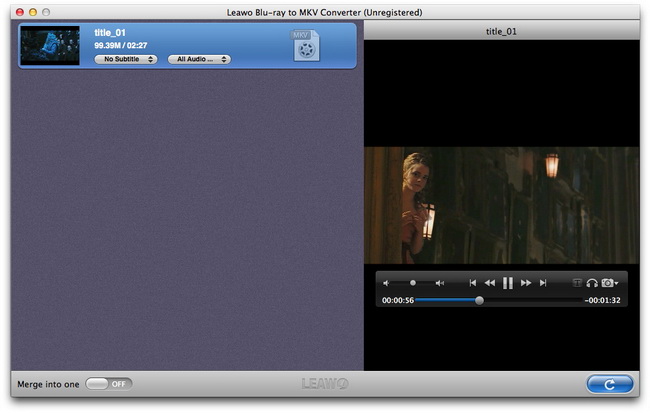
Click “Load DVD” button to load source DVD files, click “Load BD” button to import source Blu-ray files. You could load both Blu-ray/DVD discs and folders for converting.
Step 2: Select output directory to save output files
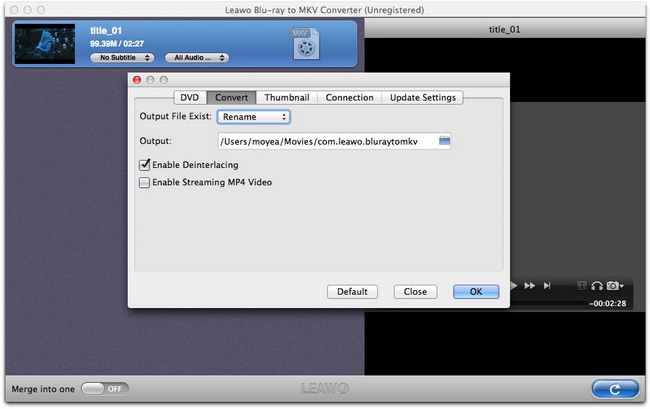
On the top-left corner of the Mac computer, click the “Leawo Blu-ray to MKV – Preference - Convert” to set output directory to save output MKV movies.
Step 3: Start converting Blu-ray/DVD to MKV on Mac
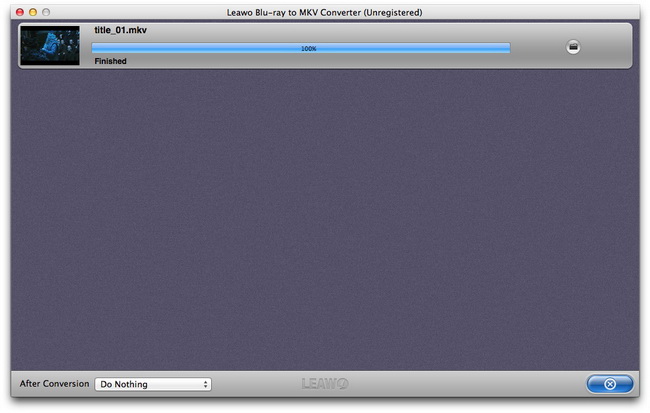
Finally, click the bottom right convert button to start to convert Blu-ray/DVD to MKV videos on Mac. On the converting panel, you could see the converting progress and do After Conversion settings.
Related program settings
On the top-left corner of the menu bar, click “Leawo Blu-ray to MKV - Preference” option to do program settings, which would help make Blu-ray/DVD to MKV conversion on Mac easier and more user-friendly.
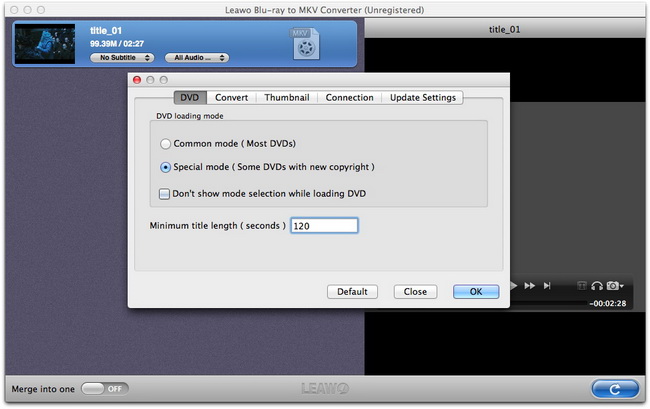
DVD loading settings: In “Leawo Blu-ray to MKV - Preference – DVD” tab, you can select the default DVD loading mode to load source movies from 2 options: Common mode and Special mode.
Convert settings: Under “Leawo Blu-ray to MKV – Preference – Convert” interface, you could decide what to do when “Output File Exist” and set “Output” directory to save output files.
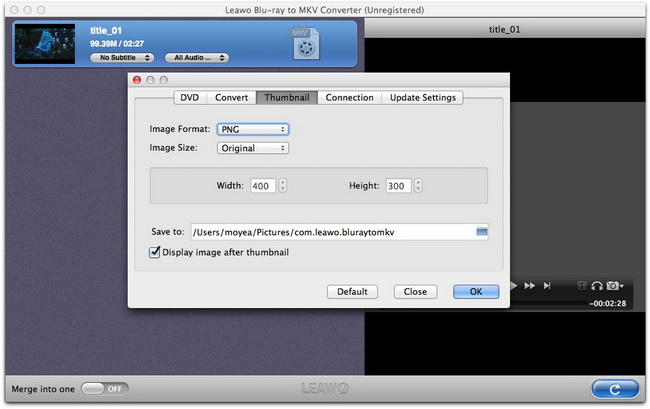
Thumbnail settings: Under “Leawo Blu-ray to MKV – Preference – Thumbnail” tab, you could set the Image Format (PNG, JPG and BMP), Image Size (stay original or custom), Save to folder to save thumbnails and Display image after thumbnail or not.
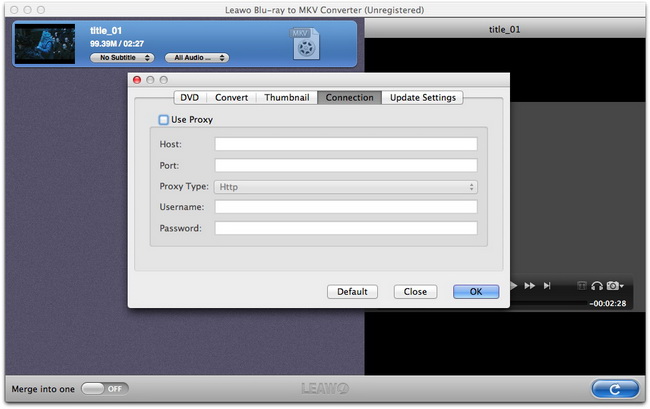
Connection settings: Under “Leawo Blu-ray to MKV – Preference – Connection” panel, you could do Proxy settings when necessary.
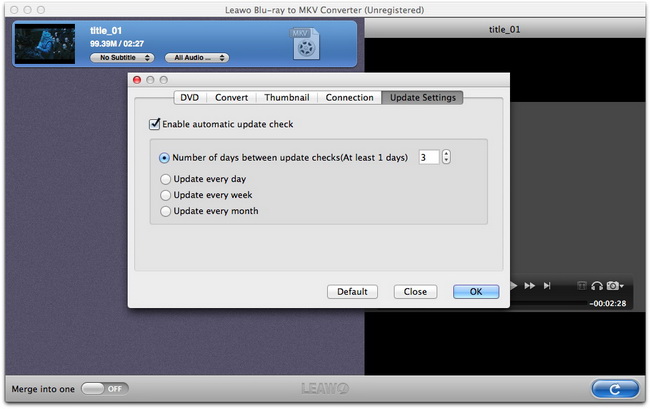
Update settings: set the update check duration in “Leawo Blu-ray to MKV – Preference – Update Settings” panel.

 Products List
- Video Tools
- Total Media Converter Ultimate
- Video Converter Ultimate/Pro

- Video Converter
- Blu-ray Creator
- DVD Creator
- iTransfer
- Music Recorder

- Video Accelerator
- PowerPoint Tools
- PowerPoint to DVD Pro
- PowerPoint to DVD Standard
- PowerPoint to Video Pro
- PowerPoint to FLV
- PowerPoint to YouTube
- PowerPoint to iPad
- Blu-ray/DVD Tools
- Blu-ray Video Converter
- Blu-ray Copy
- Blu-ray Ripper
- Blu-ray Player
- Blu-ray to MKV Converter
- DVD Ripper
- DVD Copy
- Utilities
- iOS Data Recovery
- iOS Data Recovery for Mac
- Tunes Cleaner
- Tunes Cleaner for Mac
- SWF Encrypt
- SWF Encrypt for Mac
- Mac Video Tools
- Video Converter Pro for Mac
- Video Converter for Mac
- Blu-ray Creator for Mac
- DVD Creator for Mac
- iTransfer for Mac
- Music Recorder for Mac
- YouTube Downloader for Mac
- iAm Ringer for Mac
- Mac Blu-ray/DVD Tools
- Blu-ray Ripper for Mac
- Blu-ray Copy for Mac
- Blu-ray Player for Mac
- Blu-ray to MKV Converter for Mac
- DVD Ripper for Mac
- DVD Copy for Mac
with the good work.
From Jay Burt
I was lucky that my search words matched your website offering. I may recommend to
my friends about you.
From Rajesh Madhawarayan