


User Guide of Leawo Mac DVD to iPhone Converter
Launch Leawo Mac DVD to iPhone Converter. The home interface features four parts: Menu Stripe, Standby List, Built-in Player and Conversion Control.
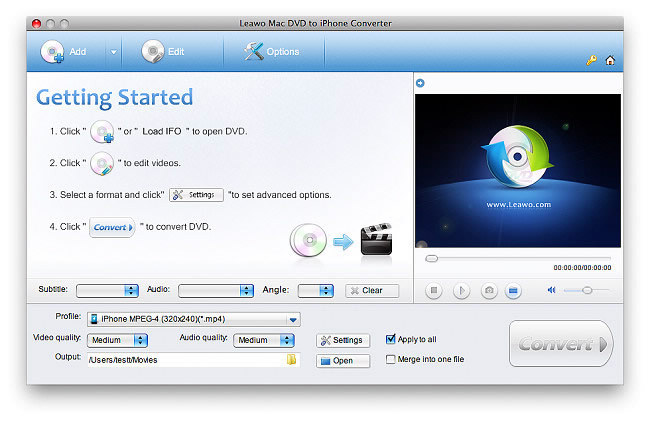
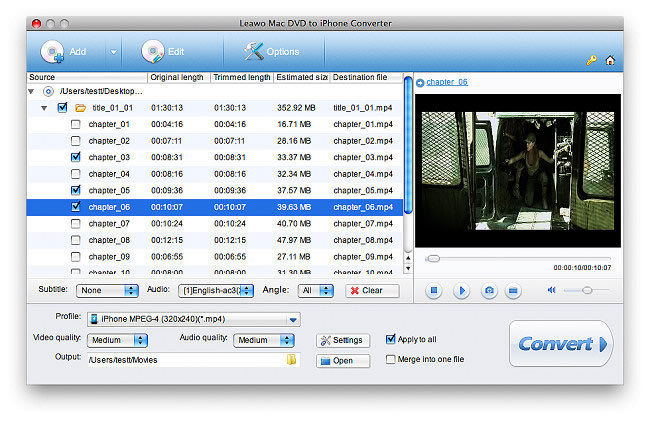
Click "Add" and select the DVD-ROM drive with DVD disc inserted. As an alternative, you can directly import IFO files from VIDEO_TS folder. Then the DVD movie will be broken down to titles and chapters on the standby list. You can continuously add DVD movies to rip multiple DVD disc at one time.
In this step, you can select DVD subtitle, audio and angle, select titles and chapters to be ripped, as well as to preview the DVD movie in the built-in player.
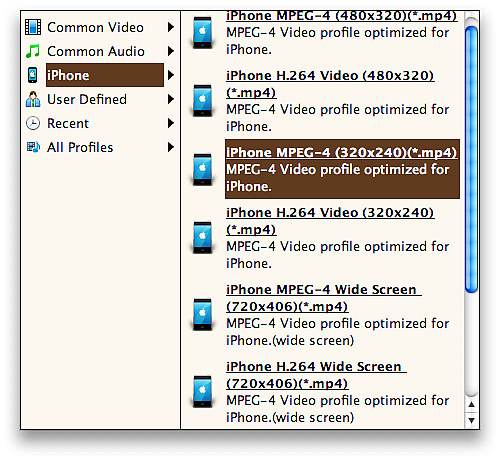
Leawo Mac DVD to iPhone Converter provides optimal iPhone presets best for beginners, which are located in the Profile dropdown box.
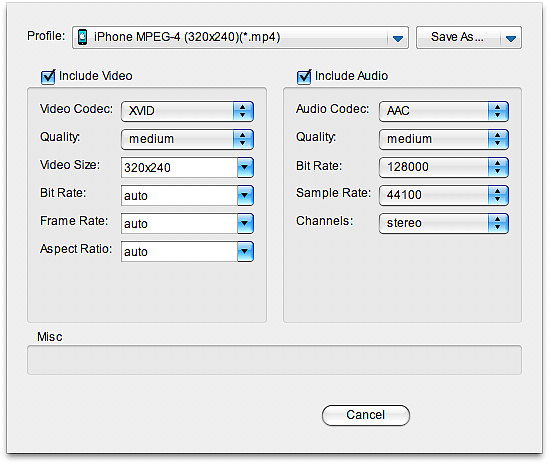
For Advanced users, Leawo Mac DVD to iPhone Converter offers extended codec settings. You can set Bit Rate, Frame Rate, Aspect Ratio, etc. Custom settings can be saved for personal use.
Leawo Mac DVD to iPhone Converter also provides useful video edit functions. Choose a title or chapter and click Edit on the Menu Stripe to open video edit panel. Click Crop to frame the DVD movie to be ripped.
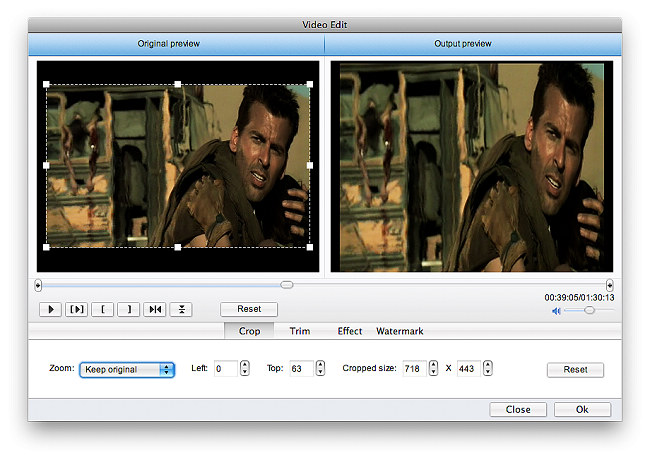
Click Trim to cut a segment from the video at millisecond accuracy.
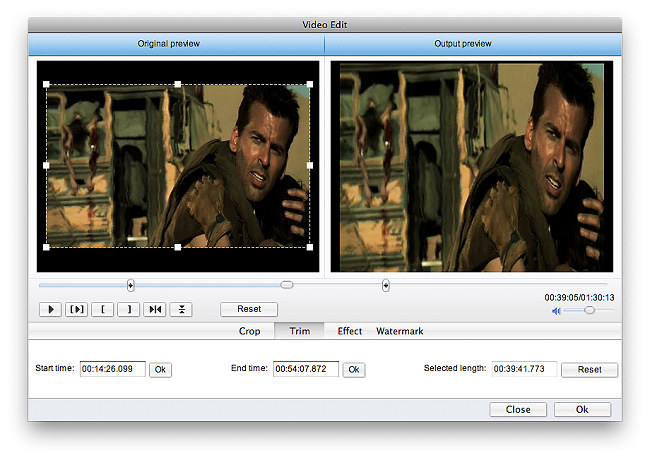
Click Effect to adjust Brightness, Contrast and Saturation.
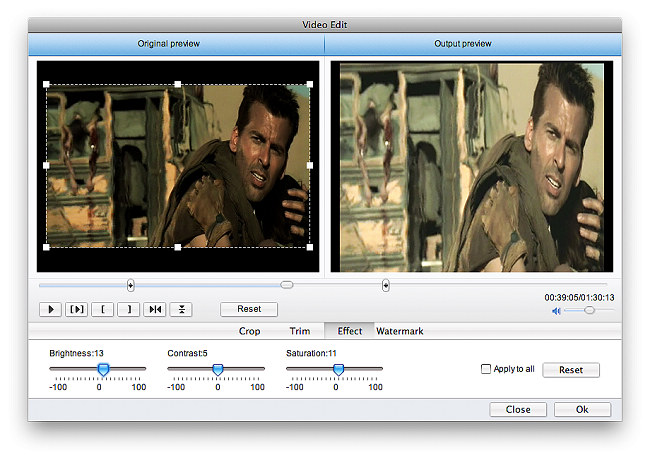
Click Watermark to create image watermark or text watermark on the video.
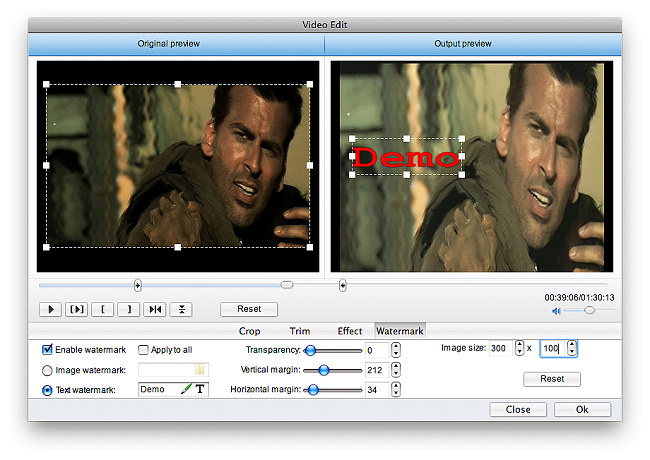
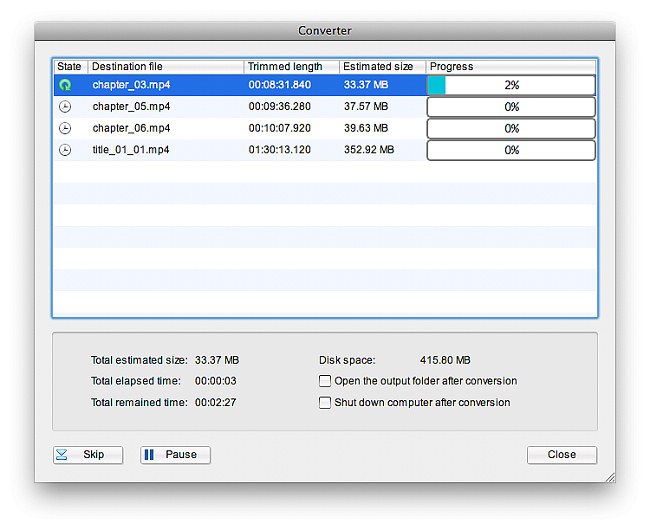
Return to the home interface and click Convert to start DVD to iPhone conversion.

 Products List
- Video Tools
- Total Media Converter Ultimate
- Video Converter Ultimate/Pro

- Video Converter
- Blu-ray Creator
- DVD Creator
- iTransfer
- Music Recorder

- Video Accelerator
- PowerPoint Tools
- PowerPoint to DVD Pro
- PowerPoint to DVD Standard
- PowerPoint to Video Pro
- PowerPoint to FLV
- PowerPoint to YouTube
- PowerPoint to iPad
- Blu-ray/DVD Tools
- Blu-ray Video Converter
- Blu-ray Copy
- Blu-ray Ripper
- Blu-ray Player
- Blu-ray to MKV Converter
- DVD Ripper
- DVD Copy
- Utilities
- iOS Data Recovery
- iOS Data Recovery for Mac
- Tunes Cleaner
- Tunes Cleaner for Mac
- SWF Encrypt
- SWF Encrypt for Mac
- Mac Video Tools
- Video Converter Pro for Mac
- Video Converter for Mac
- Blu-ray Creator for Mac
- DVD Creator for Mac
- iTransfer for Mac
- Music Recorder for Mac
- YouTube Downloader for Mac
- iAm Ringer for Mac
- Mac Blu-ray/DVD Tools
- Blu-ray Ripper for Mac
- Blu-ray Copy for Mac
- Blu-ray Player for Mac
- Blu-ray to MKV Converter for Mac
- DVD Ripper for Mac
- DVD Copy for Mac
with the good work.
From Jay Burt
I was lucky that my search words matched your website offering. I may recommend to
my friends about you.
From Rajesh Madhawarayan