


User Guide of Leawo iPad Video Converter
How to convert video to iPad MP4 to play on Apple iPad with Leawo iPad Converter?
1. Get Leawo iPad Video Converter from here.
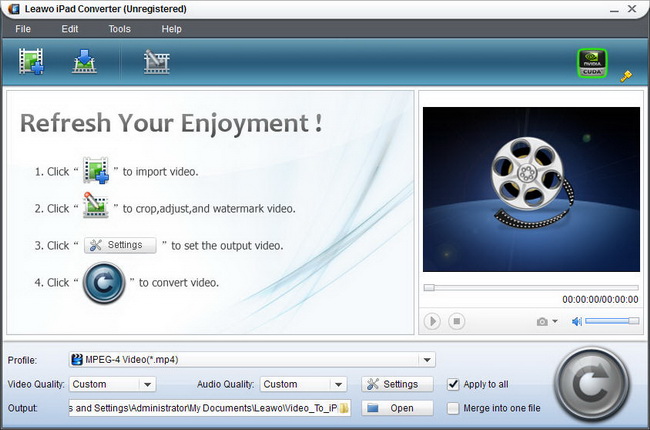
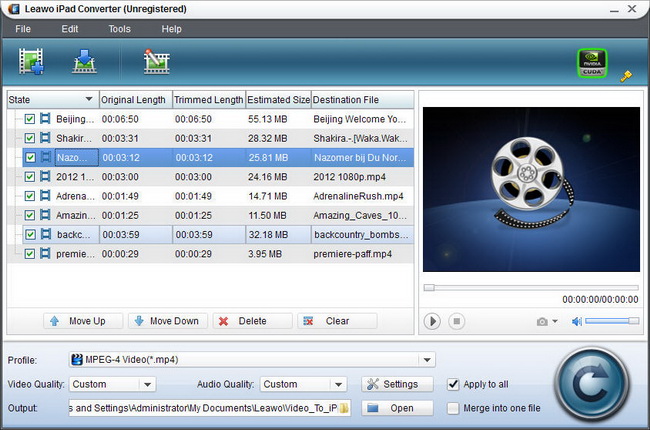
2. Click " " button to import video files or directly drag video files in . Afterwards, you can rename the files on the list, preview videos and capture screenshots.
3. Click the " " to edit the video to be converted.
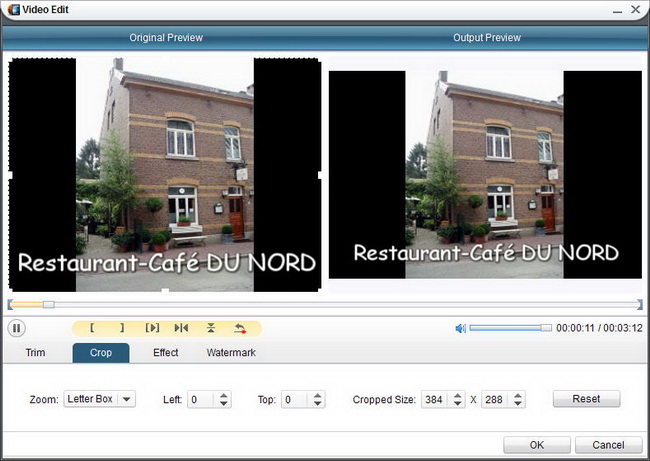
Under "Trim" tab, you can define the video segment to be converted by dragging the triangle limiters on the player bar or enter time values.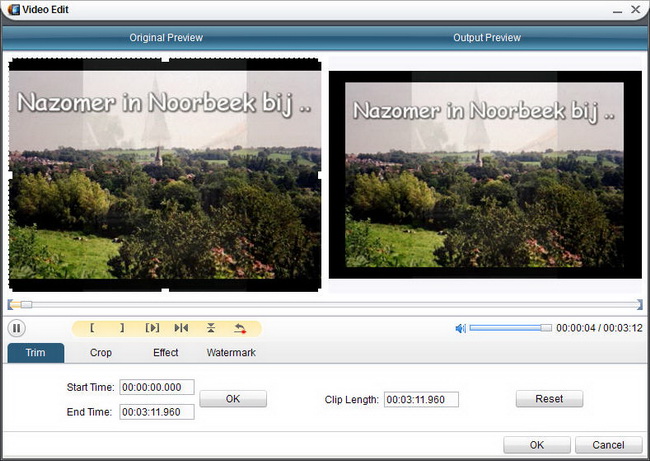 Under "Crop" tab, you can remove unwanted parts on screen by moving the handlers of the dashed frame on the player window.
 Under "Effect" tab, you can change video brightness, contrast, saturation and audio volume.
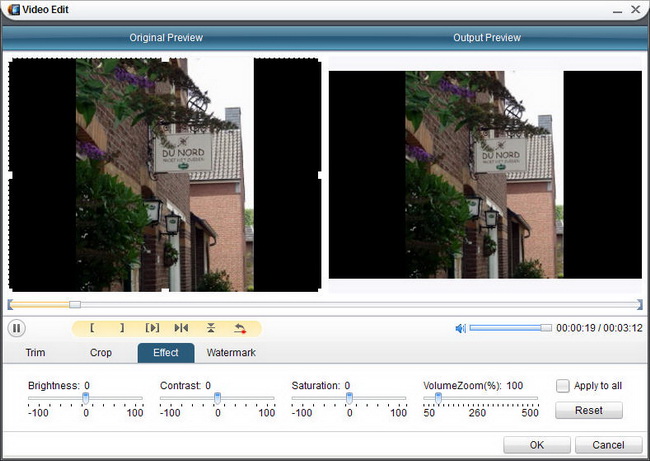 Under "Watermark" tab, click "Enable Watermark", and then click "Image Watermark". You can select an image file and use the positioning sliders to locate it on screen.
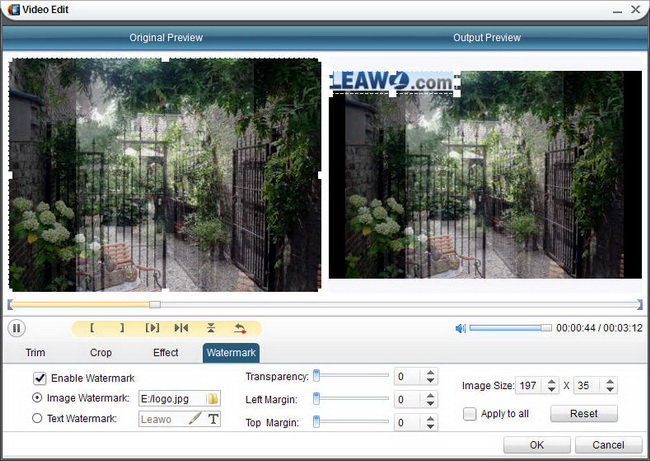
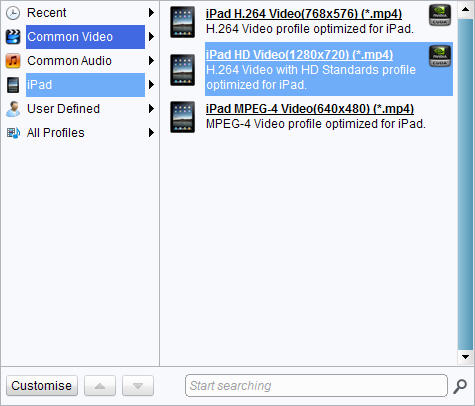
Under "Watermark" section, click "Enable Watermark", and then click "Text Watermark". You can input a text, apply desired font style and generate a watermark for it on the video.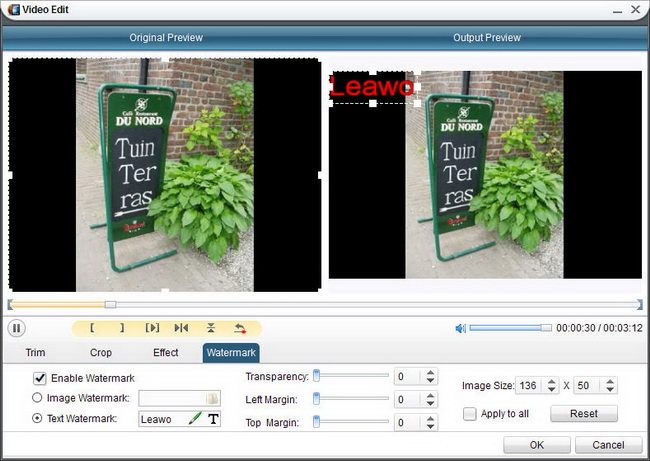 Leawo iPad Converter offers optimized profiles for iPad along with profiles for common video and audio formats.
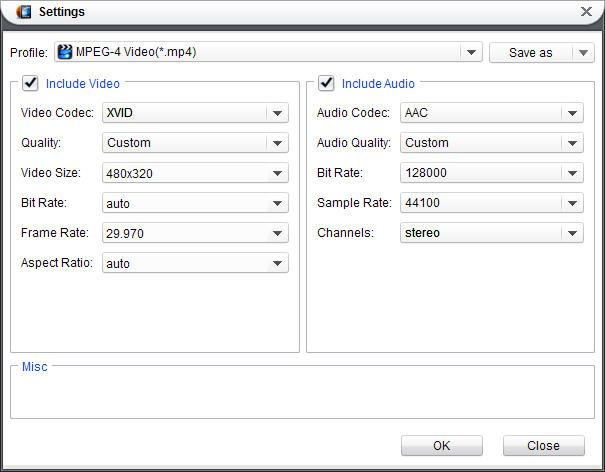
Click "Settings" button to show Advanced Codec Parameter Setting panel. Available parameters are Video Codec, Bit Rate, Video Size, Frame Rate, Aspect Ratio, Sample Rate, etc.
Click  button on the bottom right of the main interface to start the video to iPad conversion. During the conversion, you can specify one of the two after-done actions as shown below.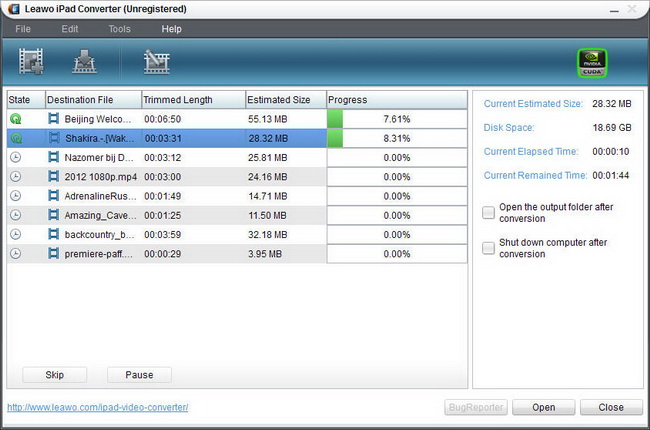

 Products List
- Video Tools
- Total Media Converter Ultimate
- Video Converter Ultimate/Pro

- Video Converter
- Blu-ray Creator
- DVD Creator
- iTransfer
- Music Recorder

- Video Accelerator
- PowerPoint Tools
- PowerPoint to DVD Pro
- PowerPoint to DVD Standard
- PowerPoint to Video Pro
- PowerPoint to FLV
- PowerPoint to YouTube
- PowerPoint to iPad
- Blu-ray/DVD Tools
- Blu-ray Video Converter
- Blu-ray Copy
- Blu-ray Ripper
- Blu-ray Player
- Blu-ray to MKV Converter
- DVD Ripper
- DVD Copy
- Utilities
- iOS Data Recovery
- iOS Data Recovery for Mac
- Tunes Cleaner
- Tunes Cleaner for Mac
- SWF Encrypt
- SWF Encrypt for Mac
- Mac Video Tools
- Video Converter Pro for Mac
- Video Converter for Mac
- Blu-ray Creator for Mac
- DVD Creator for Mac
- iTransfer for Mac
- Music Recorder for Mac
- YouTube Downloader for Mac
- iAm Ringer for Mac
- Mac Blu-ray/DVD Tools
- Blu-ray Ripper for Mac
- Blu-ray Copy for Mac
- Blu-ray Player for Mac
- Blu-ray to MKV Converter for Mac
- DVD Ripper for Mac
- DVD Copy for Mac
with the good work.
From Jay Burt
I was lucky that my search words matched your website offering. I may recommend to
my friends about you.
From Rajesh Madhawarayan